LibreOffice Impress – Full Practical Training Guide
TRAINING SCENARIO (REAL-WORLD)
Scenario Title:
Faculty Orientation Program Presentation
Situation:
You are an Academic Administrative Officer in a university.
The Dean has asked you to prepare a presentation for a New Academic Staff Orientation Program.
The presentation will be delivered by the Dean, so it must:
- Use a professional template
- Have smooth slide transitions
- Include simple animations (not distracting)
- Contain speaker notes for the presenter
- Be clear, clean, and easy to understand
📌 EXPECTED FINAL OUTPUT
A 10-slide professional presentation including:
- Official template
- Animated bullet points
- Slide transitions
- Speaker notes for each slide
FULL STEP-BY-STEP GUIDE
STEP 1: Open LibreOffice Impress
- Click Start Menu
- Open LibreOffice
- Click Impress
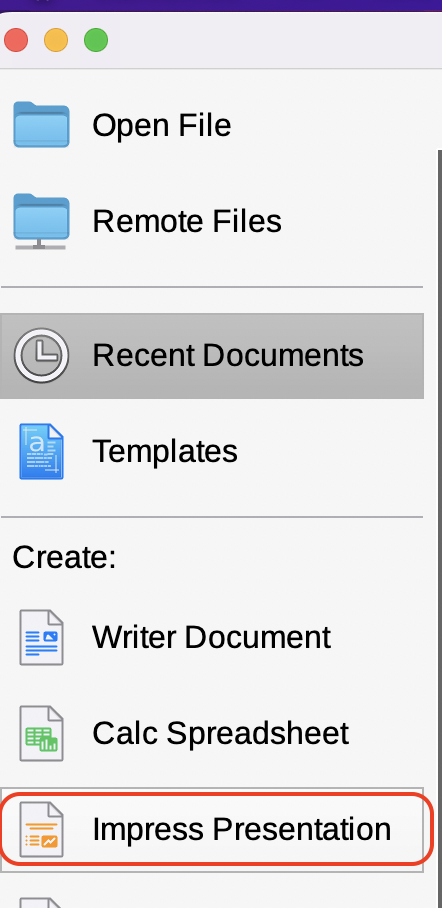
- Select Blank Presentation
- Click Create
STEP 2: Apply a Template (IMPORTANT)
Use Built-in Template
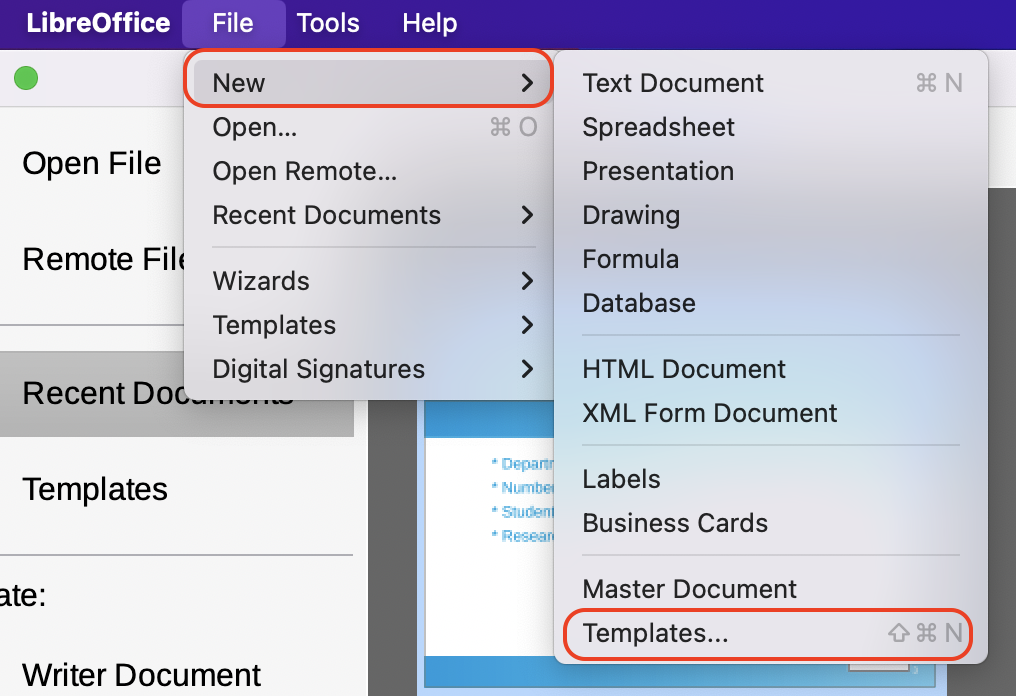
- Go to File → New → Templates
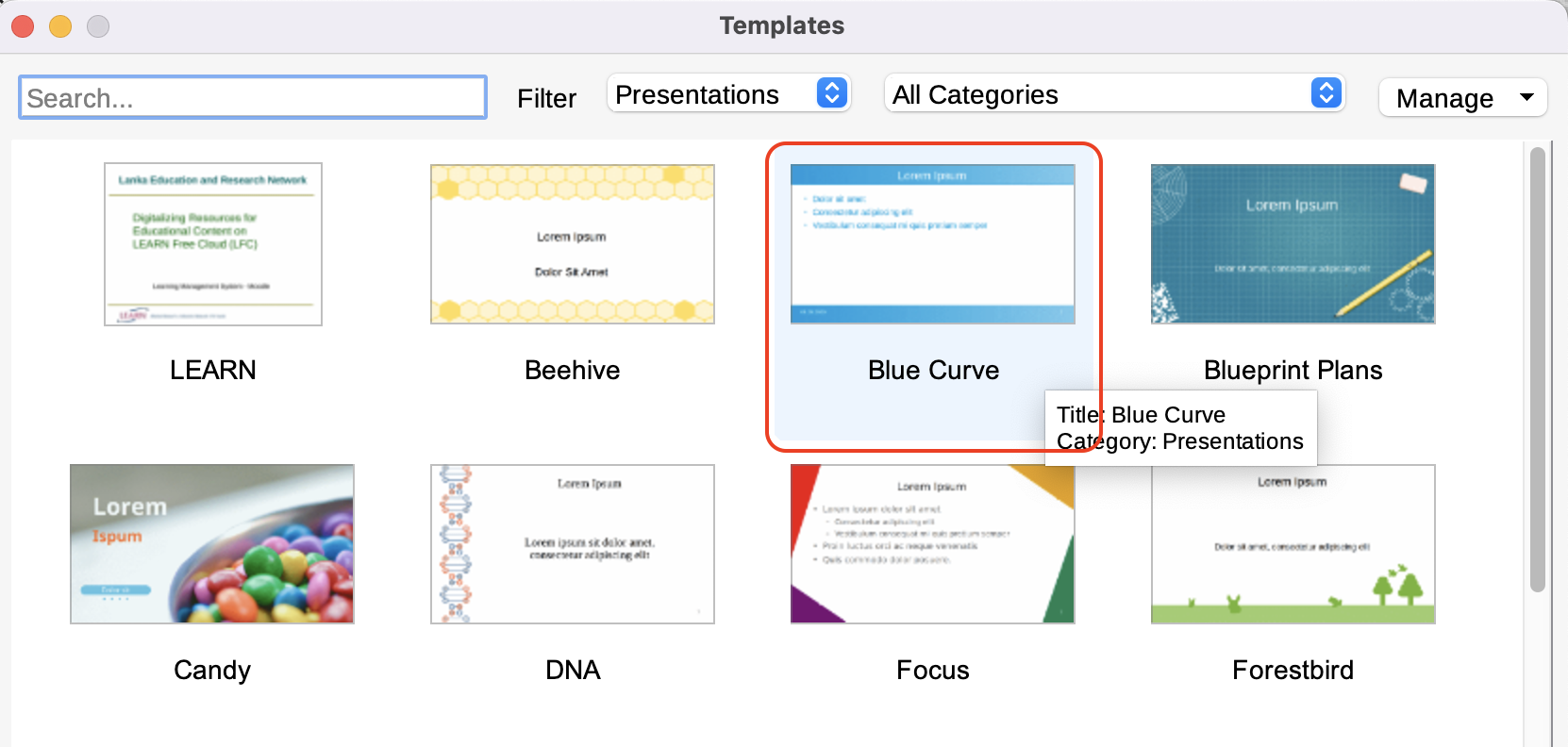
- Select Presentations
-
Choose a simple professional template (e.g. Blue Curve)
-
Click Open
✔ This applies consistent design to all slides
STEP 3: Create Title Slide (Slide 1)
Title:
New Academic Staff Orientation
insert "Text Box"
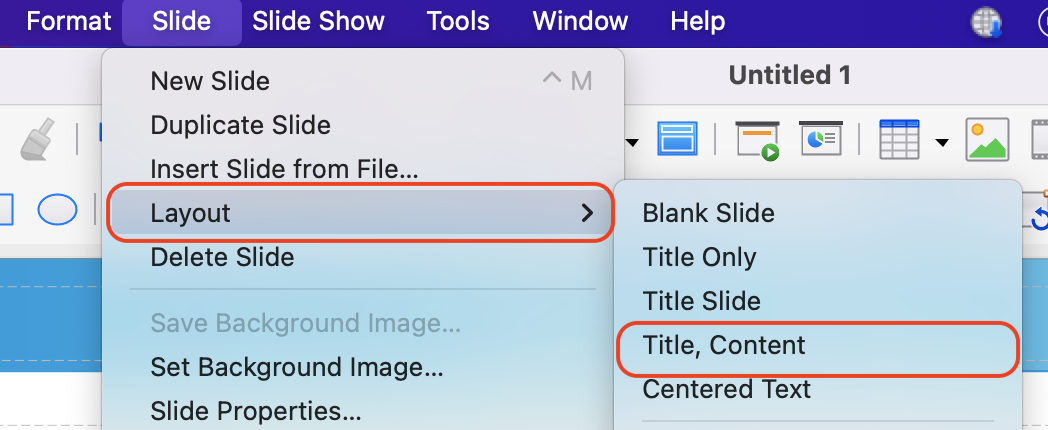
Slide > Layout > Title and Content
Subtitle:
Faculty of Science
University of XYZ
2026
✔ Keep centered ✔ Large readable font
STEP 4: Agenda Slide (Slide 2)
Add New Slide
Slide > New Slide
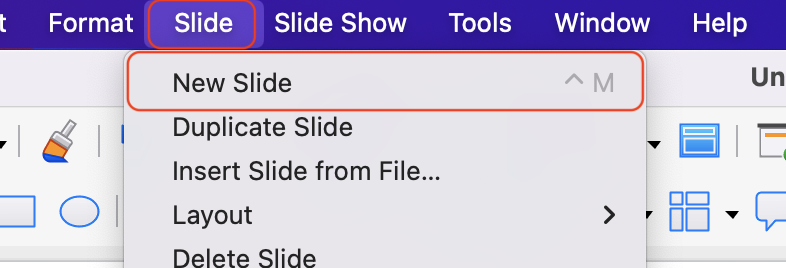
add Title and Content
Slide > Layout > Title and Content
Program Agenda
Bullet Points:
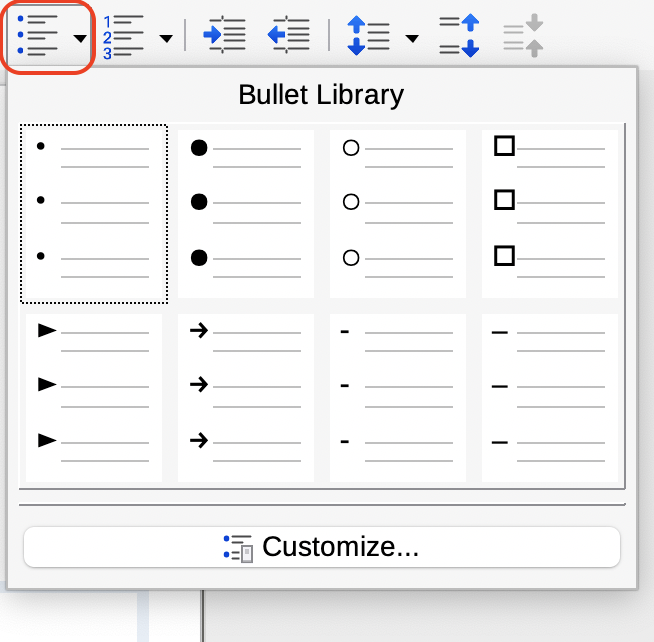
- Welcome and introduction
- Faculty structure
- Academic responsibilities
- Support services
- Questions & discussion
STEP 5: Add Speaker Notes (Slide 2)
Steps:
- Click View → Notes Pane
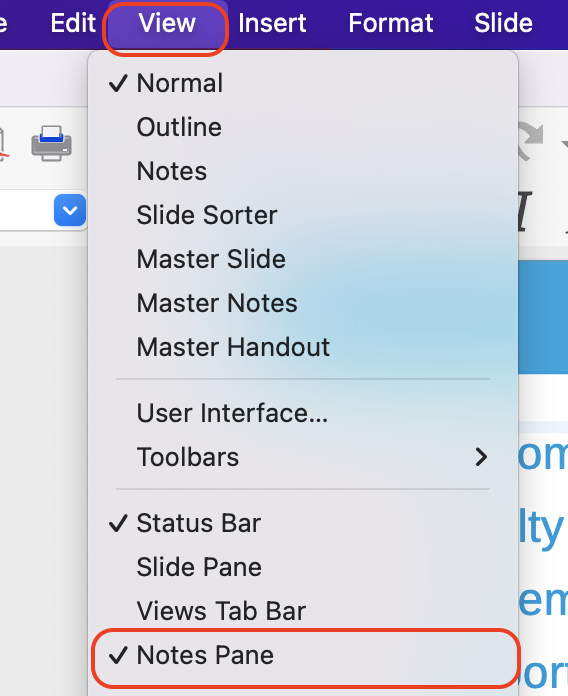
- In the notes area, type:
Briefly explain the purpose of the orientation and introduce the main topics.
✔ Speaker notes are only visible to the presenter
- back to Normal Slide Click View → Normal
STEP 6: Faculty Overview Slide (Slide 3)
Add New Slide
Slide > New Slide
add Title and Content
Slide > Layout > Title and Content
Content:
- Departments in the faculty
- Number of academic staff
- Student population
- Research focus areas
✅ STEP 7: Add Animations (Slide 3)
Animate Bullet Points (Content Only)
-
Click inside the content area (bullet text box) (Do NOT select the slide background or title)
-
Select the bullet list text
-
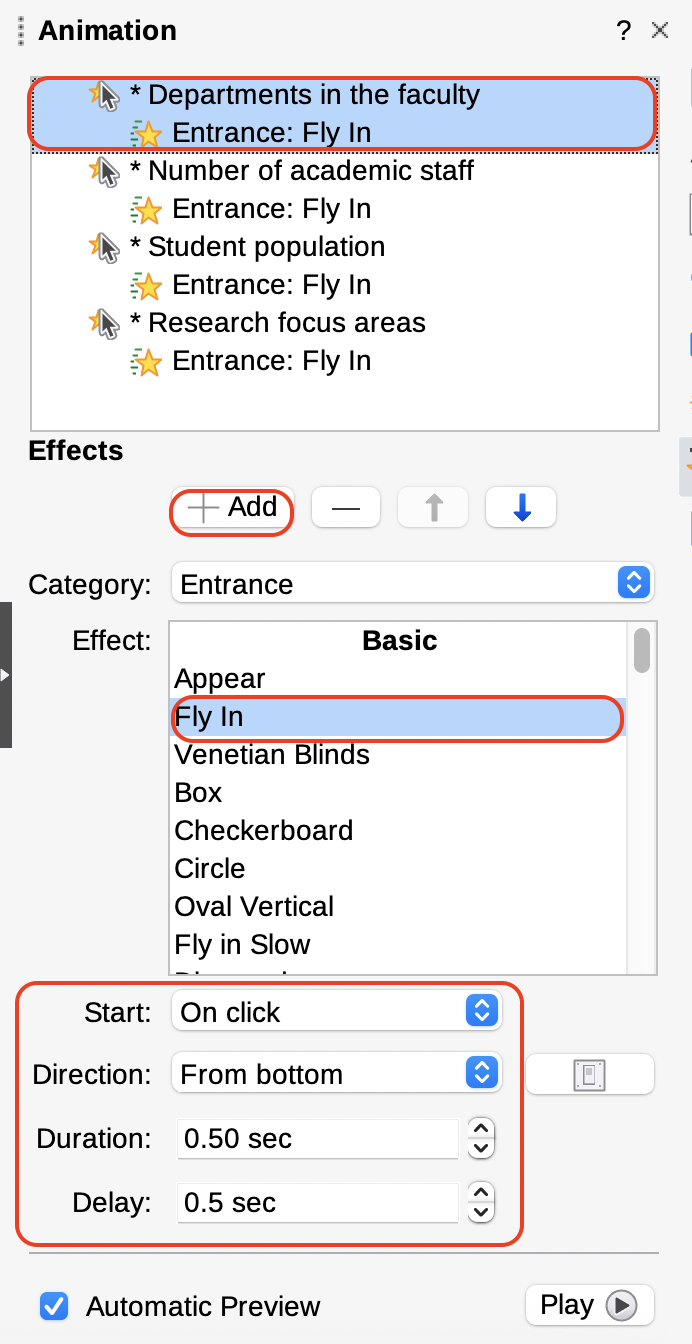
Go to View → Animation
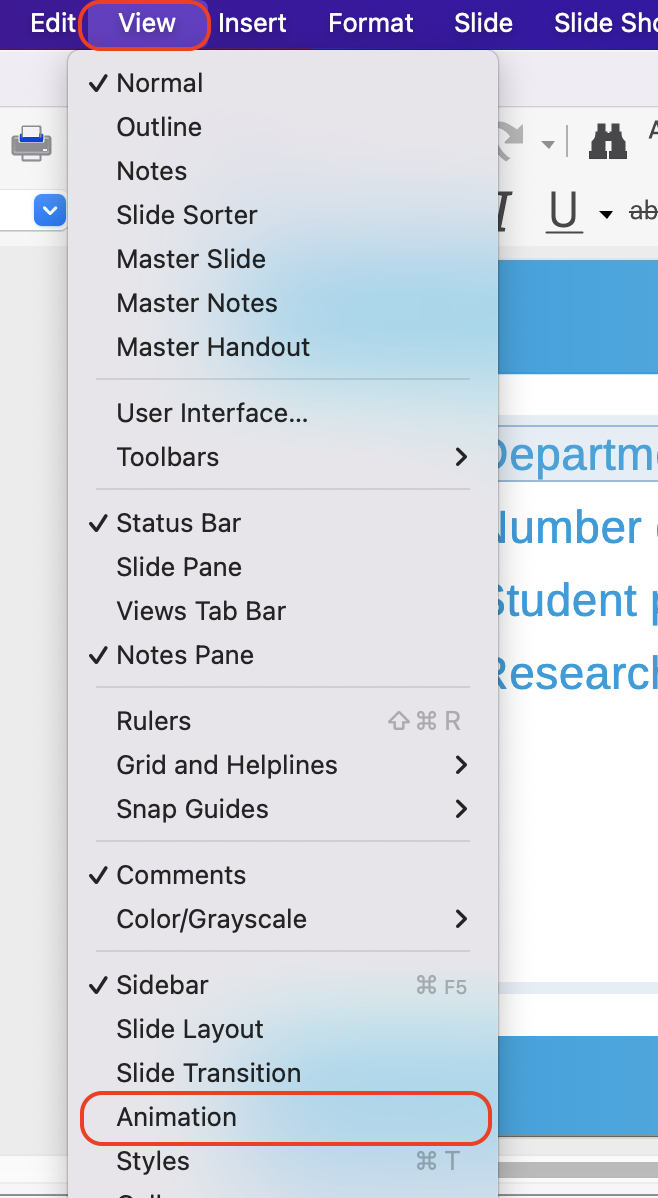 (The Animation panel will open on the right side)
- Click Add ➕
-
In the animation settings, choose:
-
Animation: Appear
- Start: On click
-
Duration: Medium
-
Click OK
-
In the Animation panel, ensure:
-
☑ Animate as series
- ☑ By paragraph level
✔ Bullet points will now appear one by one when clicking during the presentation
STEP 8: Academic Responsibilities Slide (Slide 4)
Add New Slide
Slide > New Slide
Title
"Academic Responsibilities Slide"
Content:
- Teaching responsibilities
- Research activities
- Student supervision
- Administrative duties
STEP 9: Add Animation to Title (Optional)
- Select slide title
- View → Animation
-
Choose:
-
Animation: Fade In
- Start: With previous
✔ Keep animations minimal and professional
STEP 10: Support Services Slide (Slide 5)
Content:
- IT Services
- Library services
- LMS (Moodle)
- Research office
STEP 11: Add Speaker Notes (Slide 5)
Explain how new staff can access IT, library, and research support.
STEP 12: Important Policies Slide (Slide 6)
Content:
- Attendance policy
- Examination regulations
- Leave procedures
- Code of conduct
STEP 13: Add Slide Transitions (IMPORTANT)
Apply Transition to Slides:
-
Select a slide
-
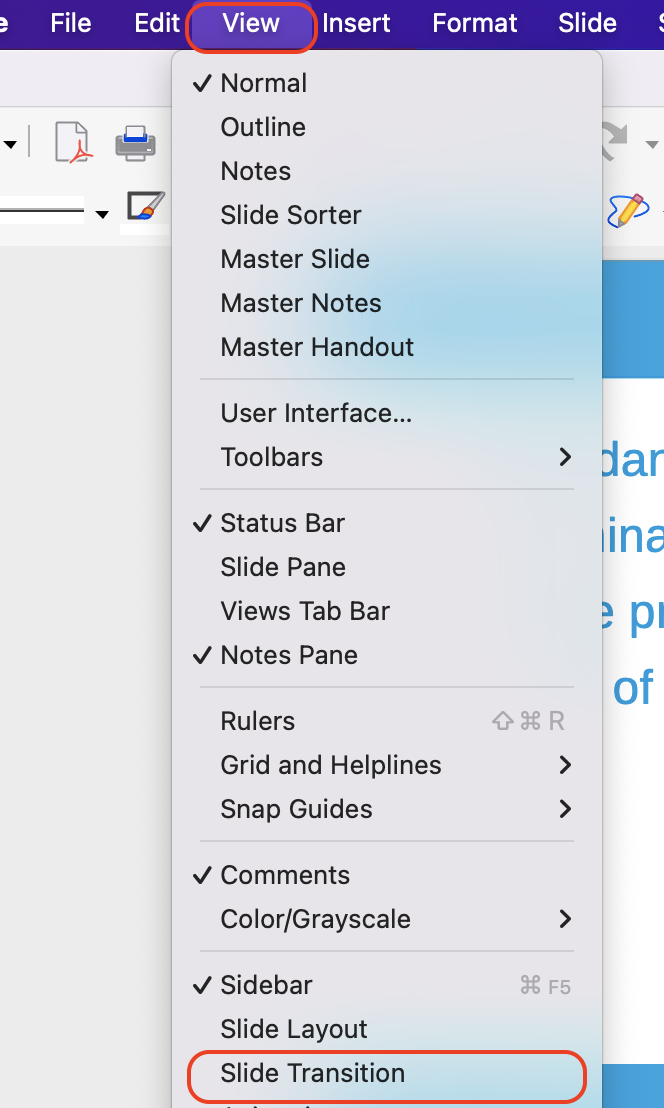
Go to View → Slide Transition
- Choose:
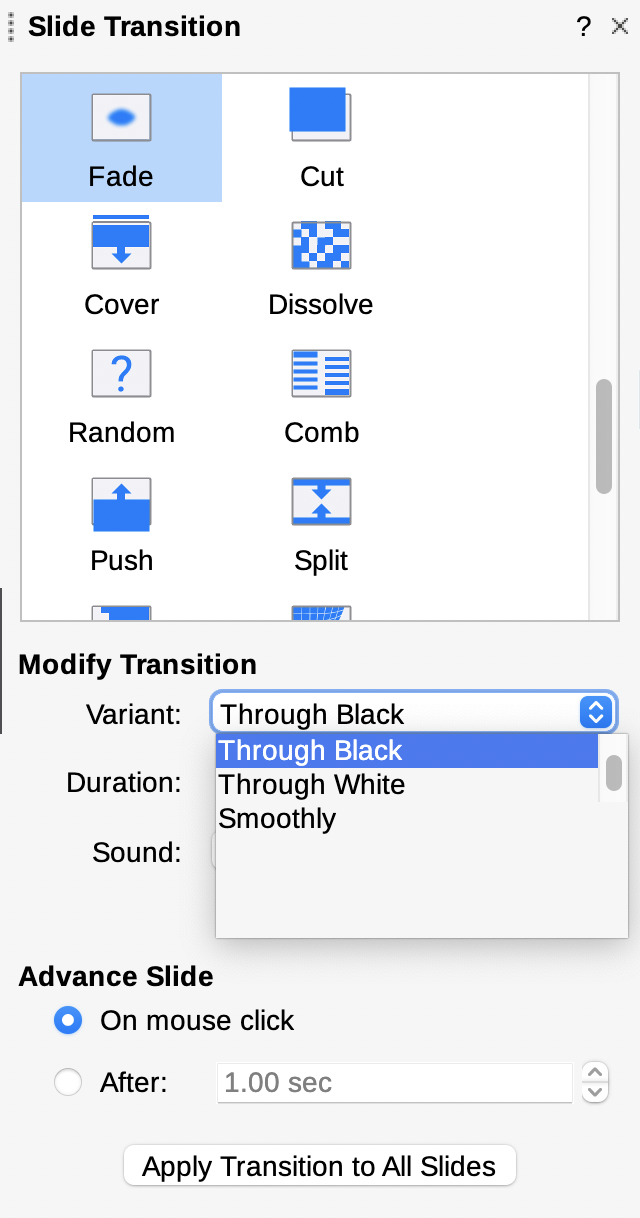
- Transition: Fade smoothly
- Duration: Medium
- Advance slide: On mouse click
- Click Apply to All Slides
✔ Smooth, non-distracting transition
STEP 14: Academic Calendar Slide (Slide 7)
Content:
- Semester start date
- Examination period
- Vacation periods
🟢 STEP 15: Add Speaker Notes (Slide 7)
Highlight key academic deadlines and emphasize punctuality.
🟢 STEP 16: Contact Information Slide (Slide 8)
Content:
- Dean’s Office
- Faculty Office
- IT Helpdesk
- Email & phone numbers
🟢 STEP 17: Questions Slide (Slide 9)
Text:
Questions & Discussion
✔ Large font ✔ Center aligned
🟢 STEP 18: Thank You Slide (Slide 10)
Text:
Thank You
Optional:
We wish you success at the Faculty of Science
🟢 STEP 19: Slide Show Preview
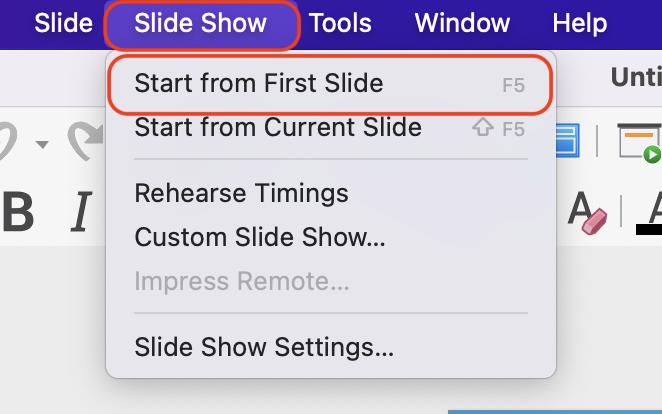
- Slide Show → Start from First Slide
-
Test:
-
Animations
- Transitions
- Speaker notes (Presenter View)
STEP 20: Save & Export
Save:
Orientation_Program_Presentation_2026.odp
Export as PDF:
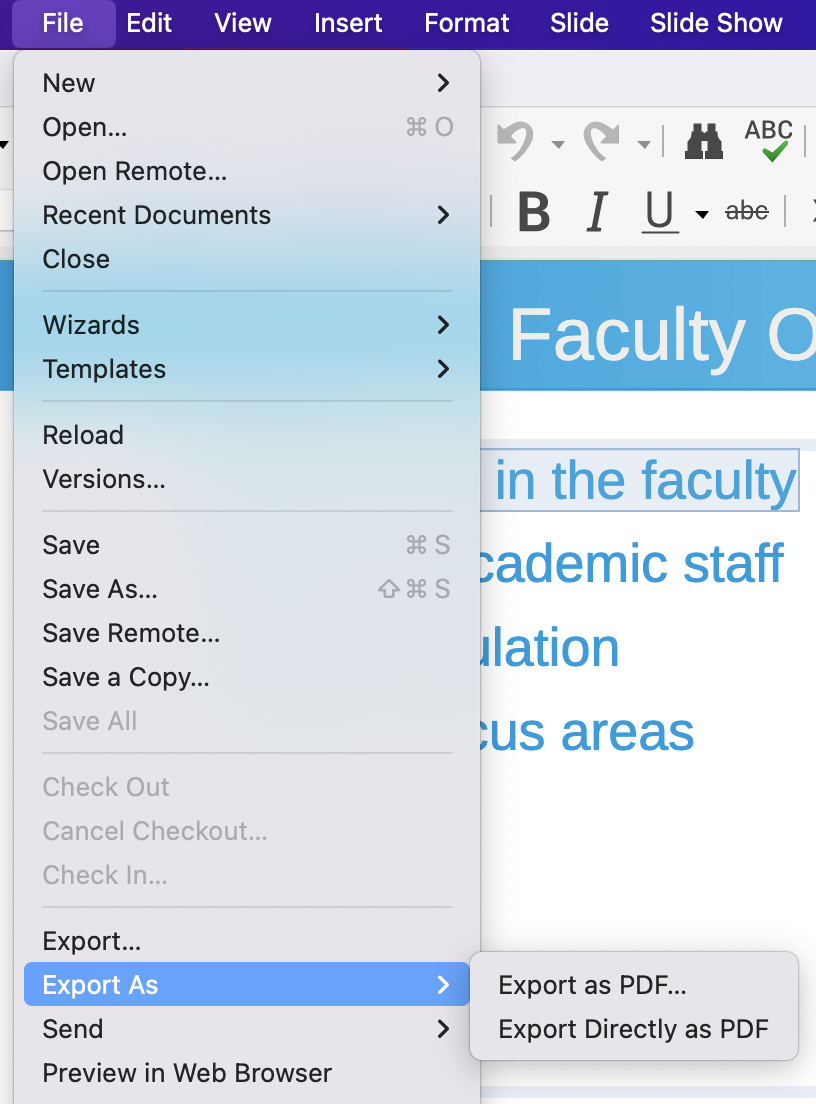
File → Export As → Export as PDF