LibreOffice Writer – Practical Training Scenario & Full Guide
Training Scenario (Real-World Based)
Scenario Title:
Preparing an Official University Circular
Situation:
You are an academic administrative officer. The Dean has asked you to prepare an official circular to inform staff about:
A Faculty Staff Meeting scheduled for next month.
The document must:
- Look professional
- Follow official formatting
- Include logo, headings, table, bullet points, and signature
- Be saved as PDF and printed
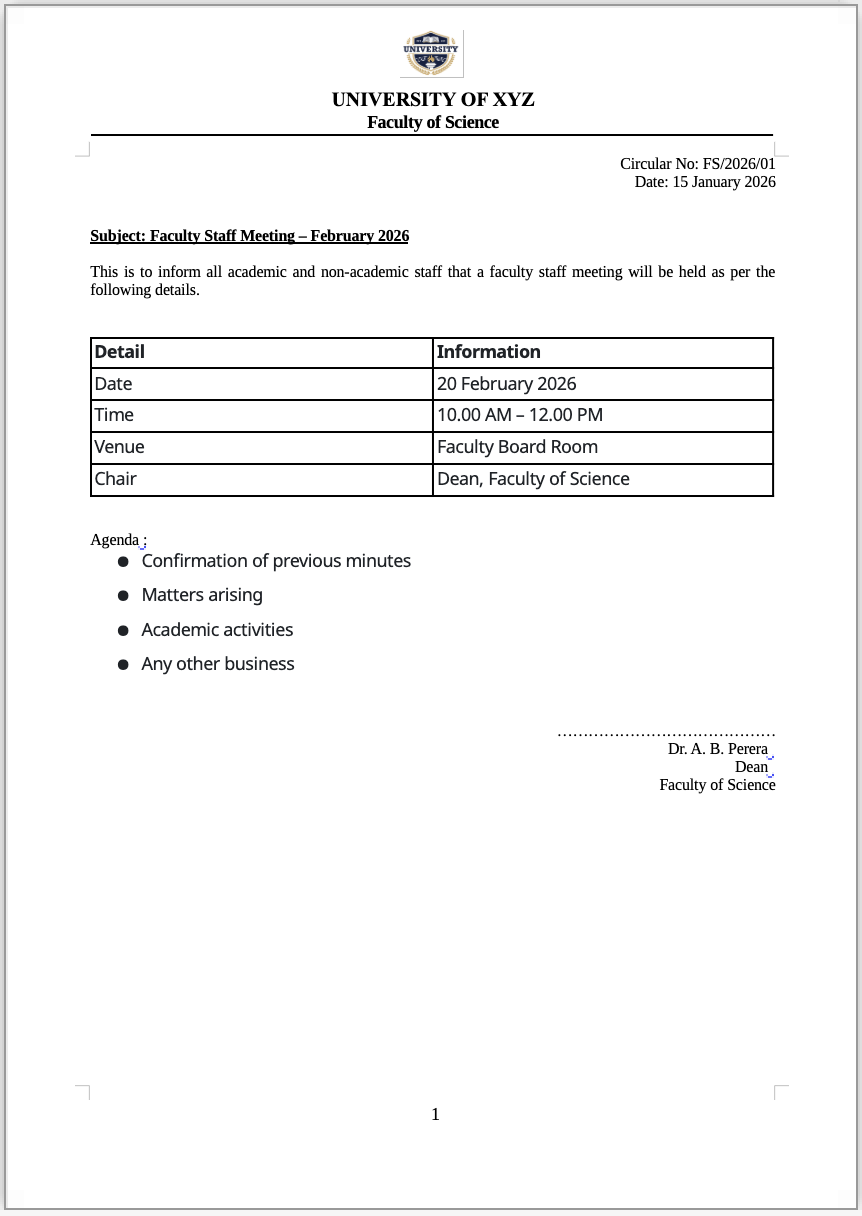
Expected Final Output
A one-page official circular containing:
- University header
- Circular number & date
- Subject line
- Meeting details (table)
- Agenda (bulleted list)
- Signature block
- Footer with page number
FULL STEP-BY-STEP GUIDE
Step 1: Open LibreOffice Writer
- Click Start Menu
- Open LibreOffice
- Select Writer
- Choose Blank Document
Step 2: Set Page Layout (Very Important)
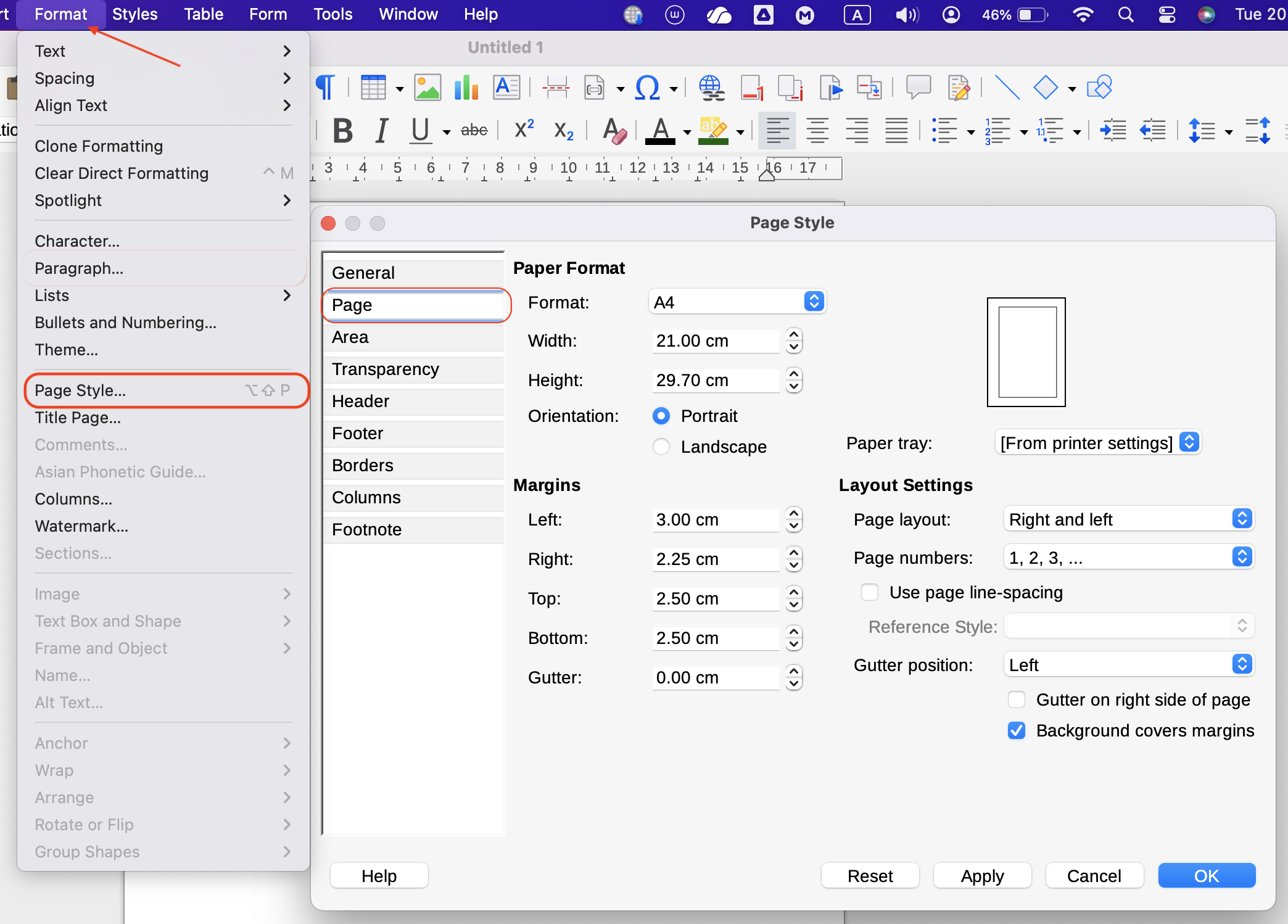
- Go to Format → Page Style
-
Set:
-
Page: A4
- Orientation: Portrait
-
Margins:
- Top: 2.5 cm
- Bottom: 2.5 cm
- Left: 3 cm
- Right: 2.5 cm
- Click OK
Step 3: Insert University Header
3 add Header
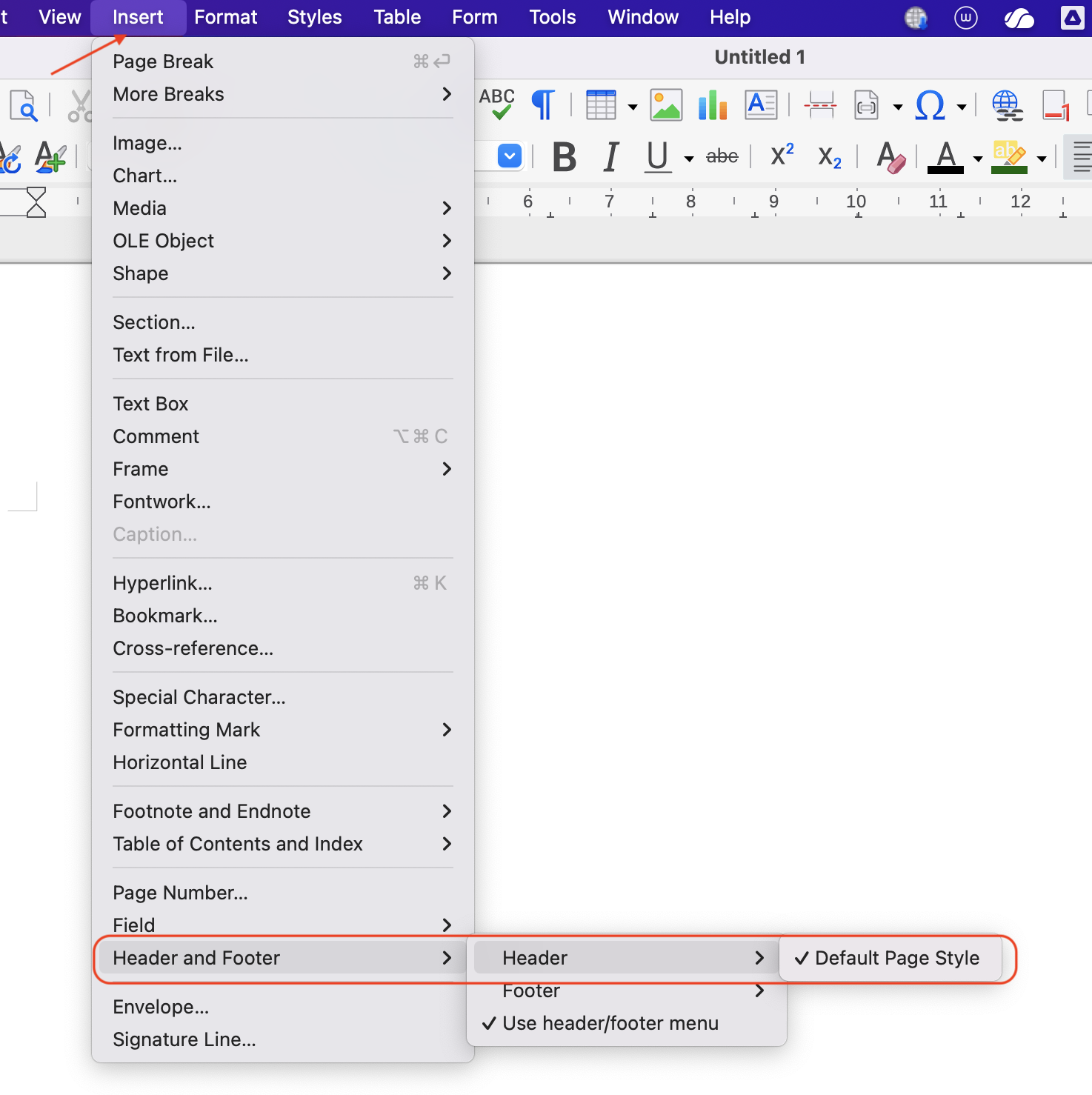
- Insert > Header and Footer > Header > Default Page Style
3.1 Insert Logo
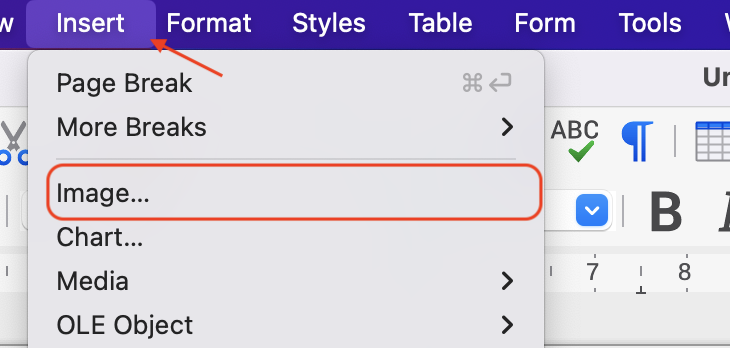
- Go to Insert → Image
- Select university logo
- Resize and Format > align Text Center
3.2 Add University Name
Type:
UNIVERSITY OF XYZ
Faculty of Science
- Select text
- Font: Times New Roman
- Size: 14 (University), 12 (Faculty)
- Alignment: Center
- Bold
Step 4: Insert Horizontal Line
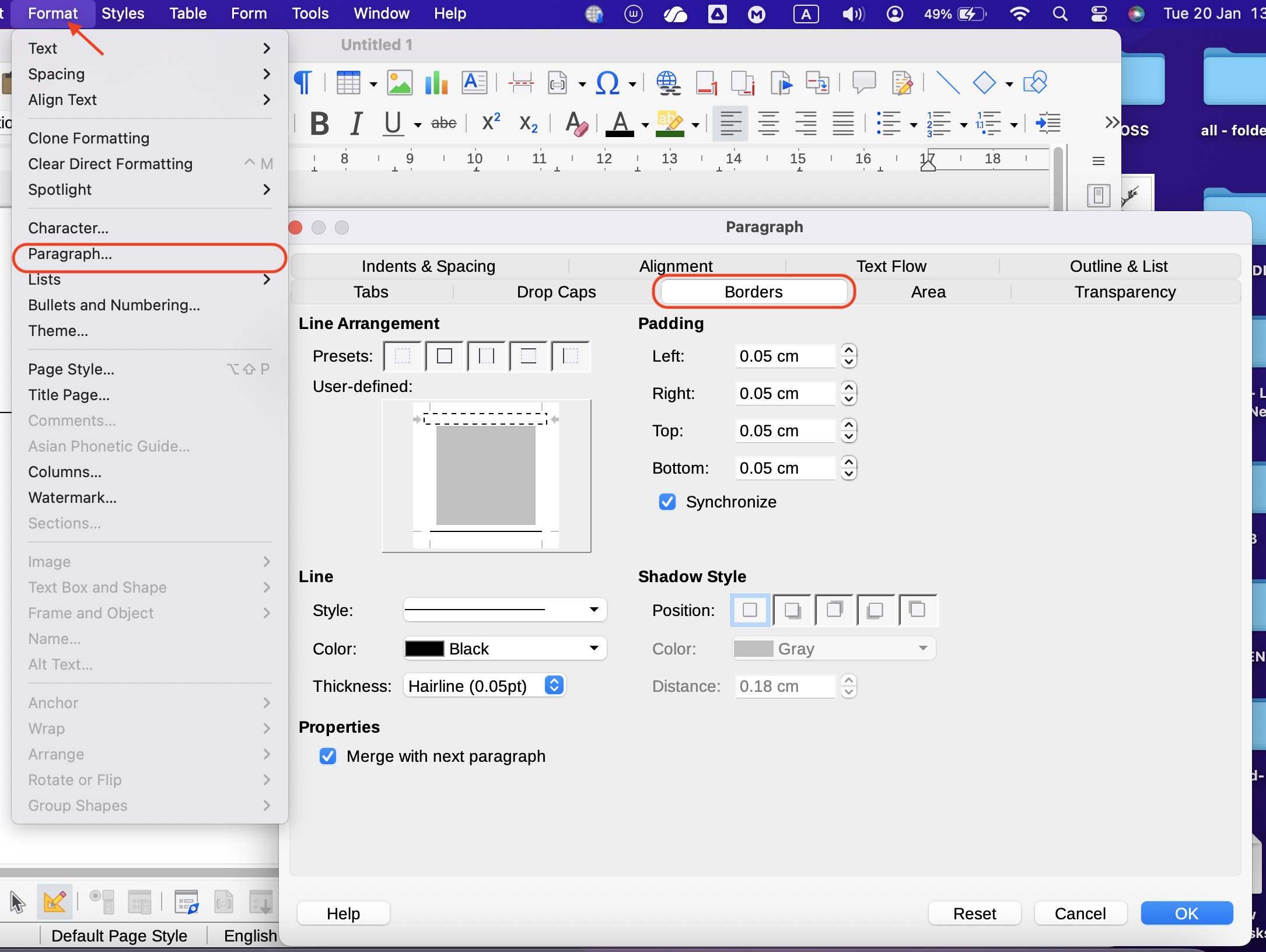
- Place cursor below header
- Go to Format → Paragraph → Borders
- Enable Bottom Border
- Click OK
Step 5: Add Circular Details
Type:
Circular No: FS/2026/01
Date: 15 January 2026
- Align Right
- Font size 11
Step 6: Add Subject Line
Type:
Subject: Faculty Staff Meeting – February 2026
- Bold
- Underline
- Align Left
Step 7: Write Body Text
Type:
This is to inform all academic and non-academic staff that a faculty staff meeting will be held as per the following details.
- Font: Times New Roman
- Size: 12
- Alignment: Justified
Step 8: Insert Table (Meeting Details)
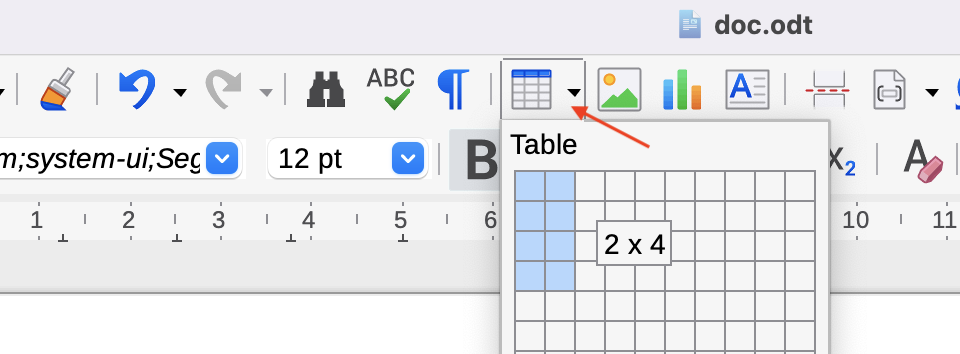
- Go to Insert → Table
- Columns: 2
- Rows: 4
Fill as follows:
| Detail | Information |
|---|---|
| Date | 20 February 2026 |
| Time | 10.00 AM – 12.00 PM |
| Venue | Faculty Board Room |
| Chair | Dean, Faculty of Science |
✔ Make first column Bold
Step 9: Insert Agenda (Bulleted List)
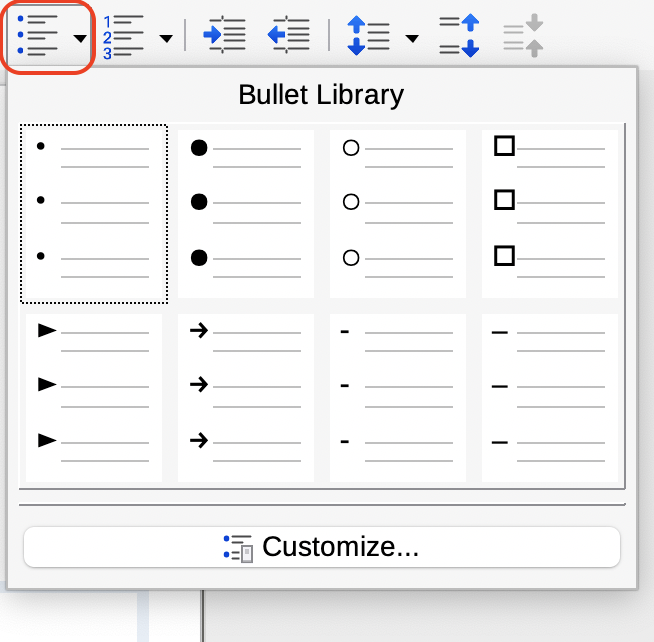
Type:
Agenda:
Press Enter, then click Bullets
- Confirmation of previous minutes
- Matters arising
- Academic activities
- Any other business
Step 10: Insert Signature Block
Leave space and type:
……………………………………
Dr. A. B. Perera
Dean
Faculty of Science
* Align Right
Step 11: Insert Footer with Page Number
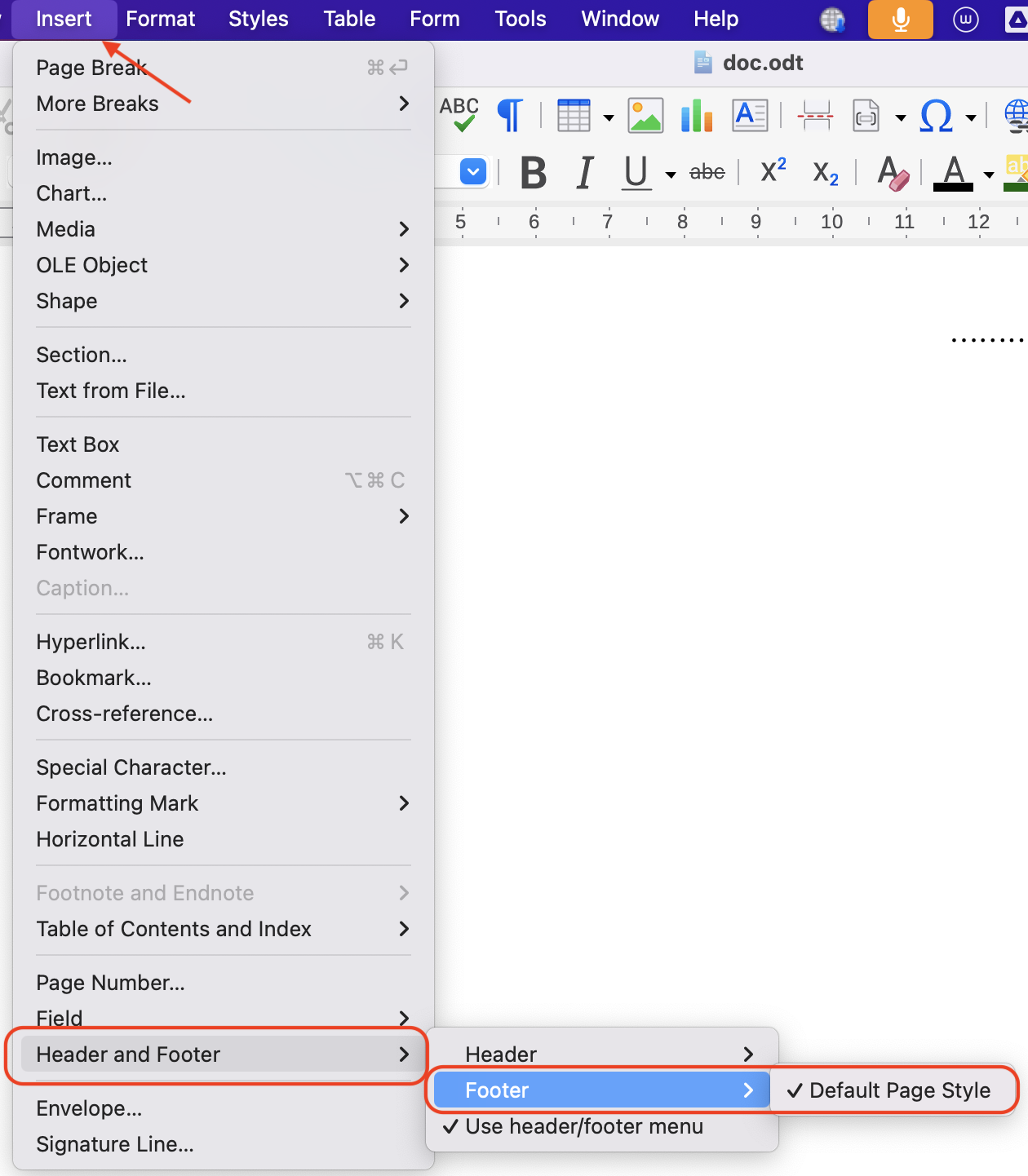
- Go to Insert → Header and Footer → Footer → Default Page Style
- Click in footer
- Go to Insert → Field → Page Number
- Align Center
Step 12: Spell Check
- Go to Tools → Spelling
- Correct highlighted words
- Click Close
Step 13: Save Document
- File → Save As
- File name:
Faculty_Staff_Meeting_Circular_2026.odt
3. Click Save
Step 14: Export as PDF
- File → Export As → Export as PDF
- Click Export
- Save file
Step 15: Print Preview
- File → Print Preview
- Check formatting
- File → Print
Final Output
Learning Outcomes
After this exercise, staff will be able to:
- Create official documents
- Format text professionally
- Insert tables & bullet lists
- Use headers & footers
- Export documents as PDF