Setup & Configuration
2. Initial Setup
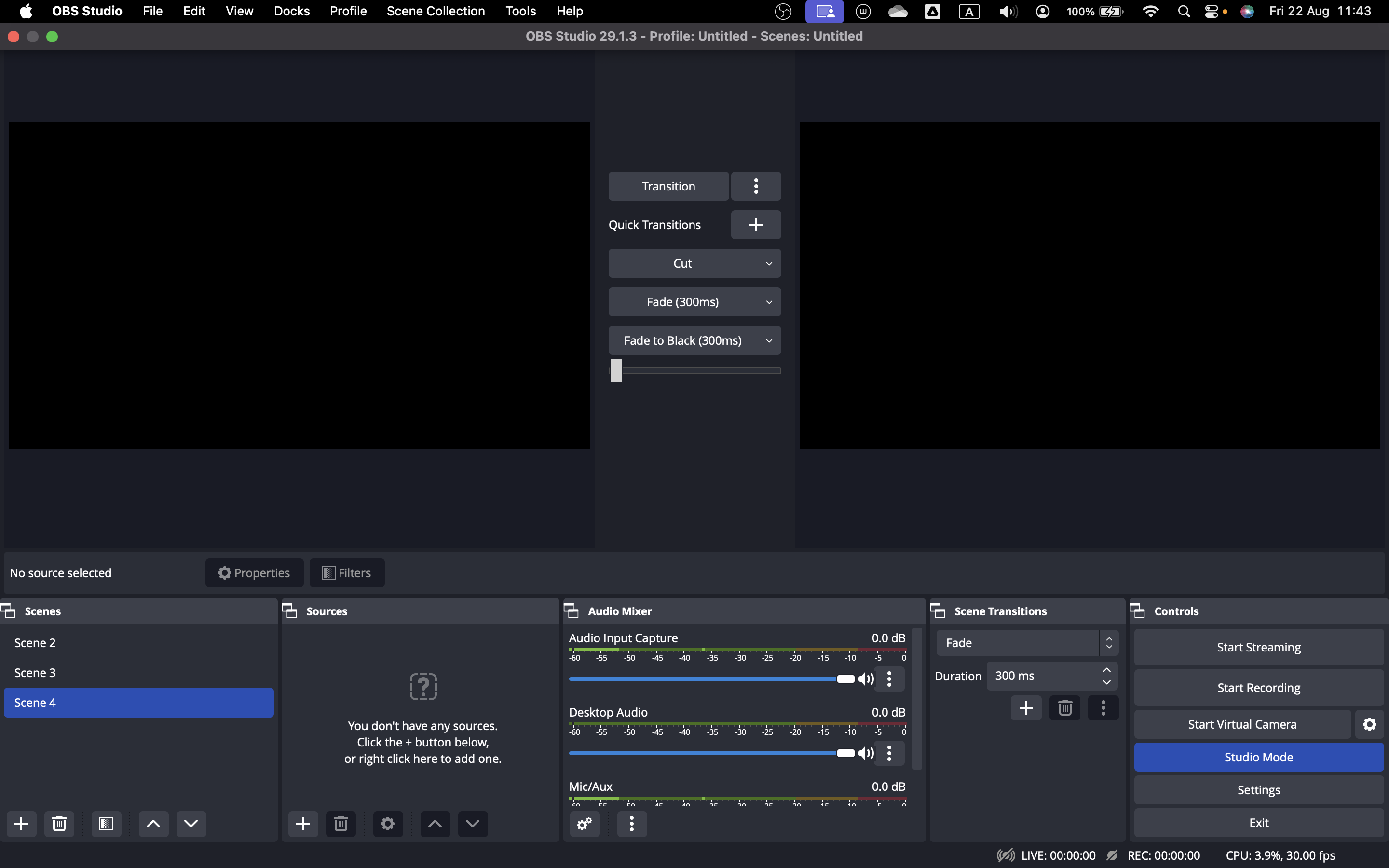
Open OBS Studio:
- Launch OBS Studio after installation. If it doesn’t open automatically, find and open it manually.
-
The interface should resemble the one shown in the video.
Create a Scene
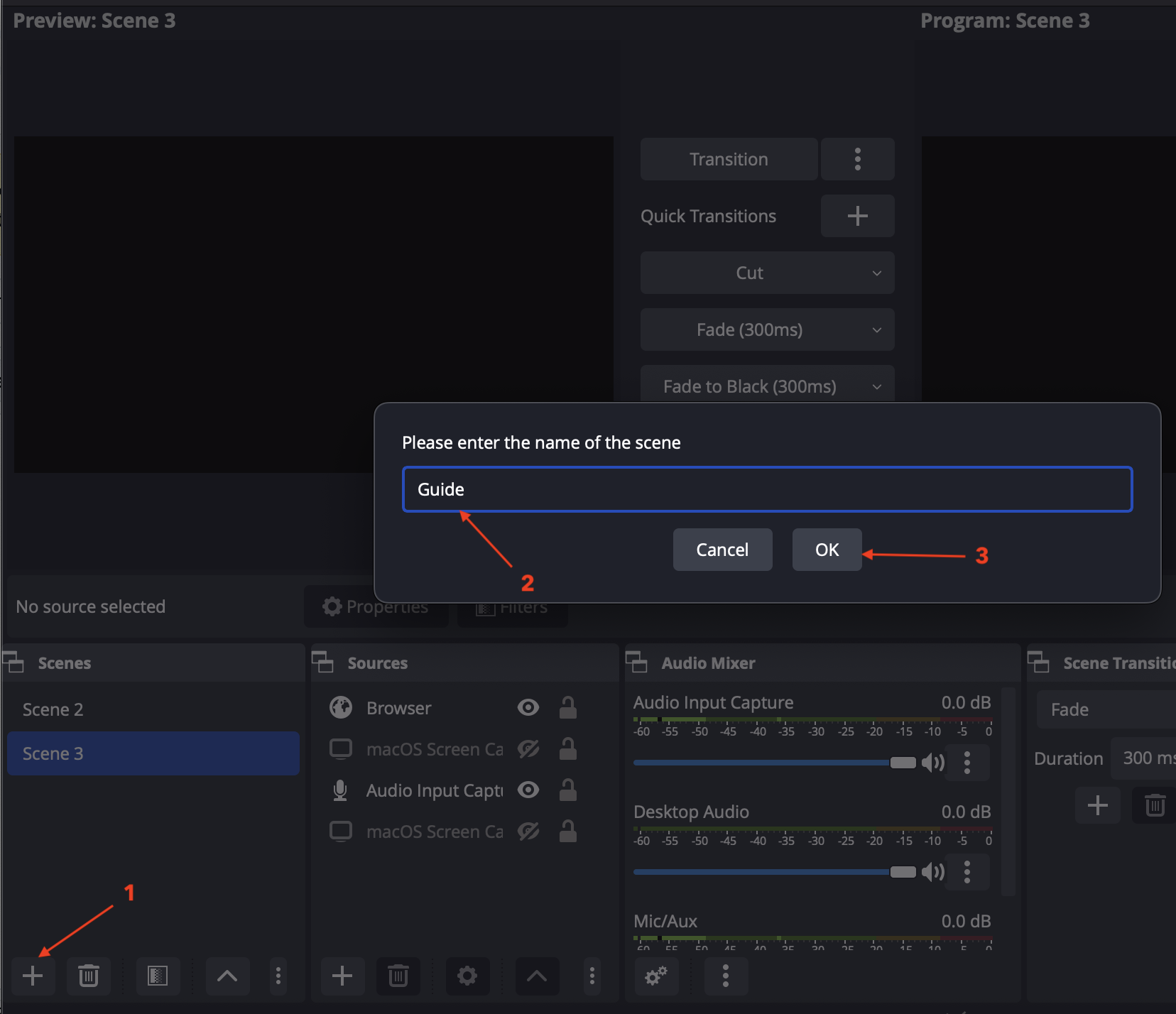
- In the "Scenes" section (bottom-left), click the "+" button to create a new scene.
-
Name the scene (e.g., "Guide") and confirm.
3. Configuration
Configure Settings:
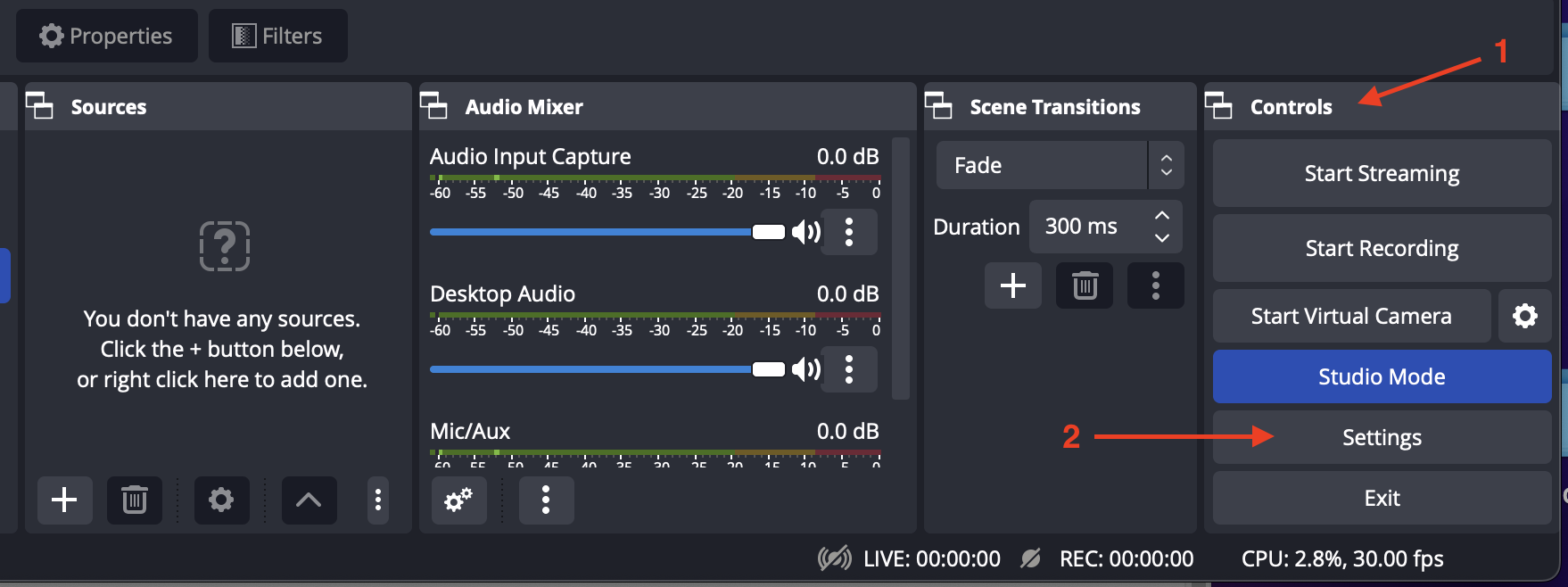
- In the control section [1], click "Settings" [2] in the bottom-right corner.
-
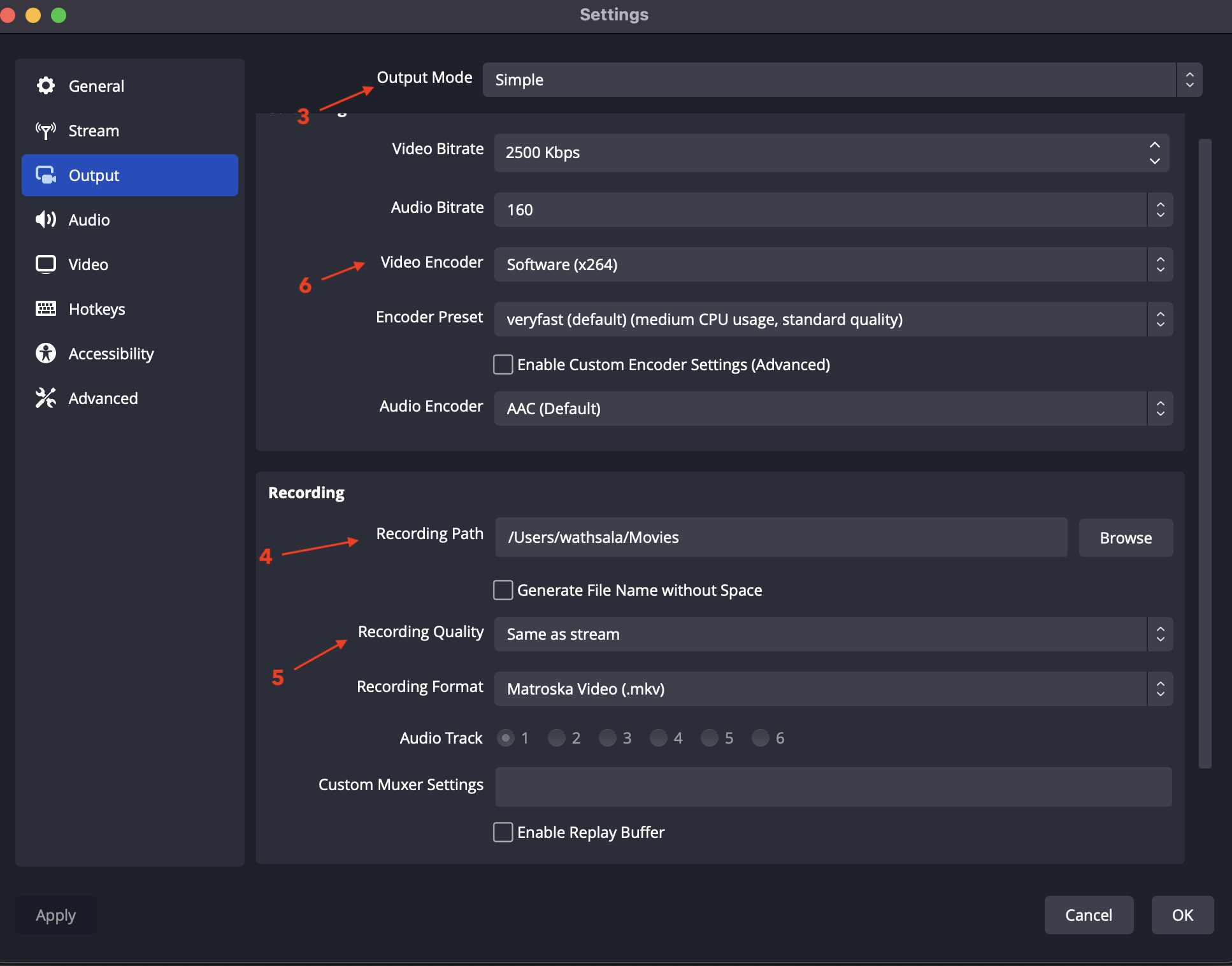
A settings window will pop up; select the "Output" tab.
- Output Settings:
- Select "Simple" mode [3].
- Set the recording path [4] (where your files will be saved).
- Choose "High Quality, Medium File Size" [5] for recording quality.
- Select MP4 as the recording format.
-
Encoder [6] (Platform Difference)
-
Choose according to your system:
🪟 Windows:
     * NVIDIA GPU → **NVENC (H.264)**
     * AMD GPU → **AMD Hardware Encoder**
     * Intel GPU → **QuickSync**
     * No dedicated GPU → **x264**
🍎 macOS:
     * Apple Silicon (M1/M2/M3) → **Apple VT H264 Hardware Encoder**
     * Intel Mac → **x264**
-
-
Click "OK" to save settings.
- Configure Audio Settings:
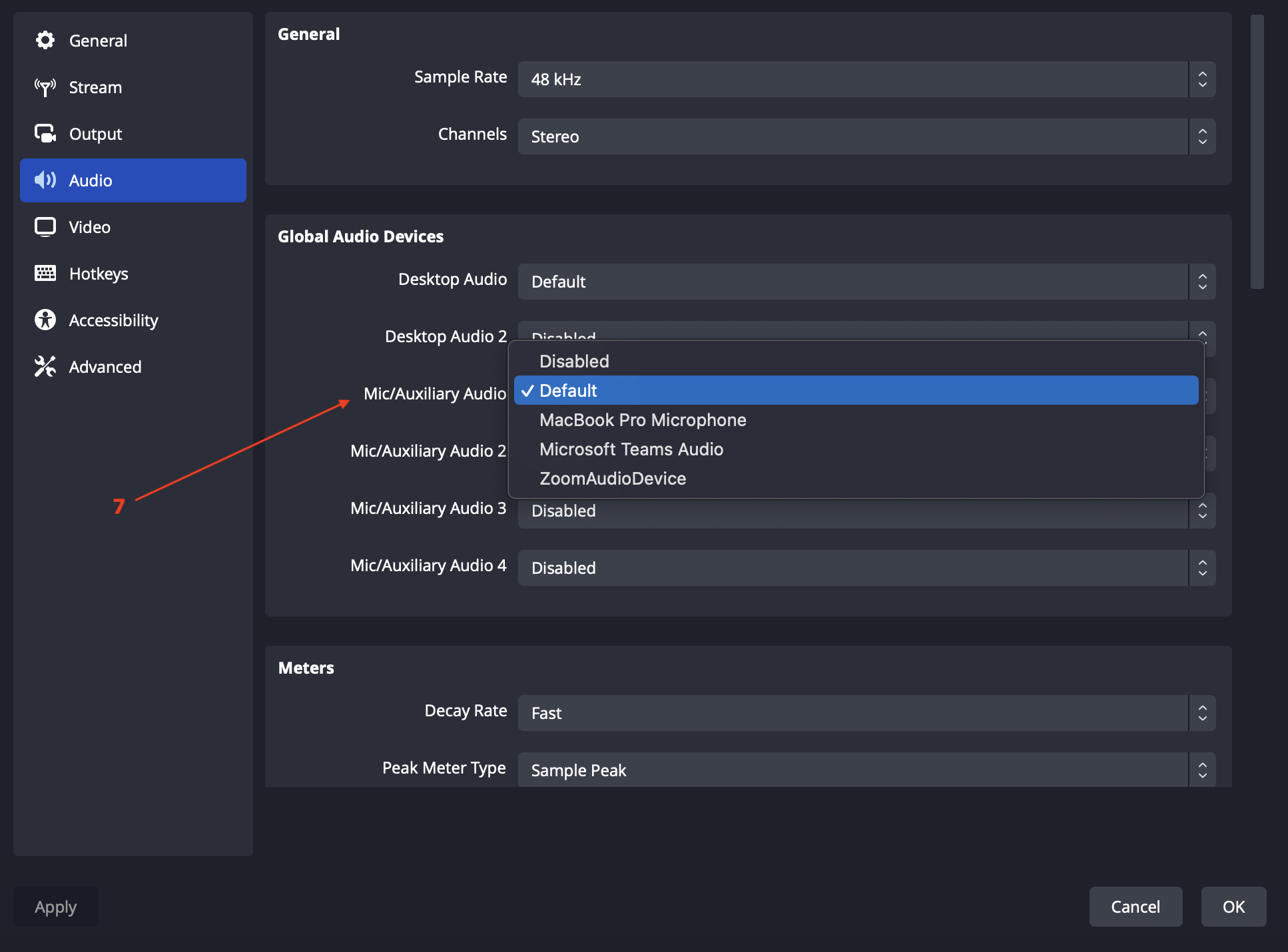
- Navigate to the "Audio" tab and select your microphone under "Mic/Auxiliary. [7]"
- Configure Video Settings:
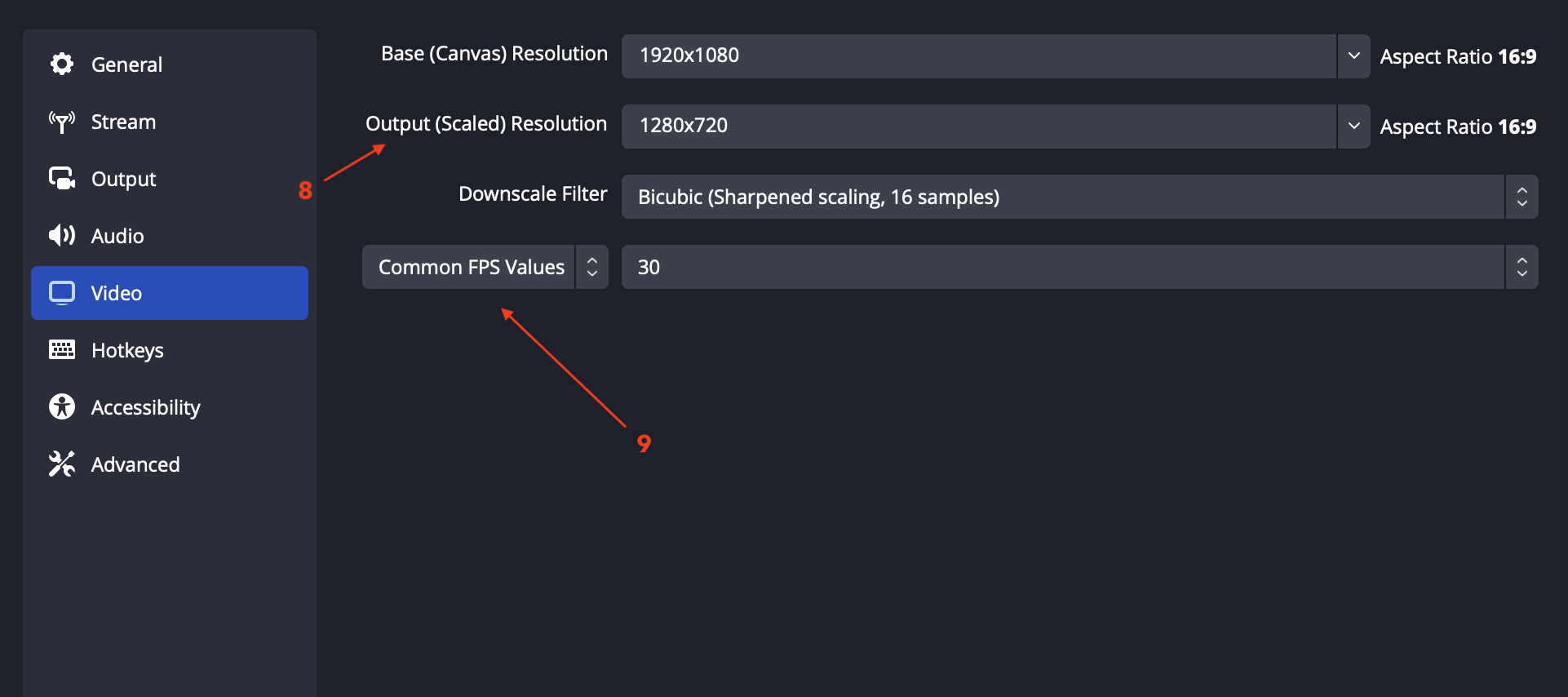
- In the "Video" tab, set the resolution (e.g., 1440p or 1080p, based on your monitor) [8].
- Choose the FPS (60 for smoother recording, 30 is sufficient) [9].
- Click "OK" to save all settings.
4. Adding Sources
Select Scene
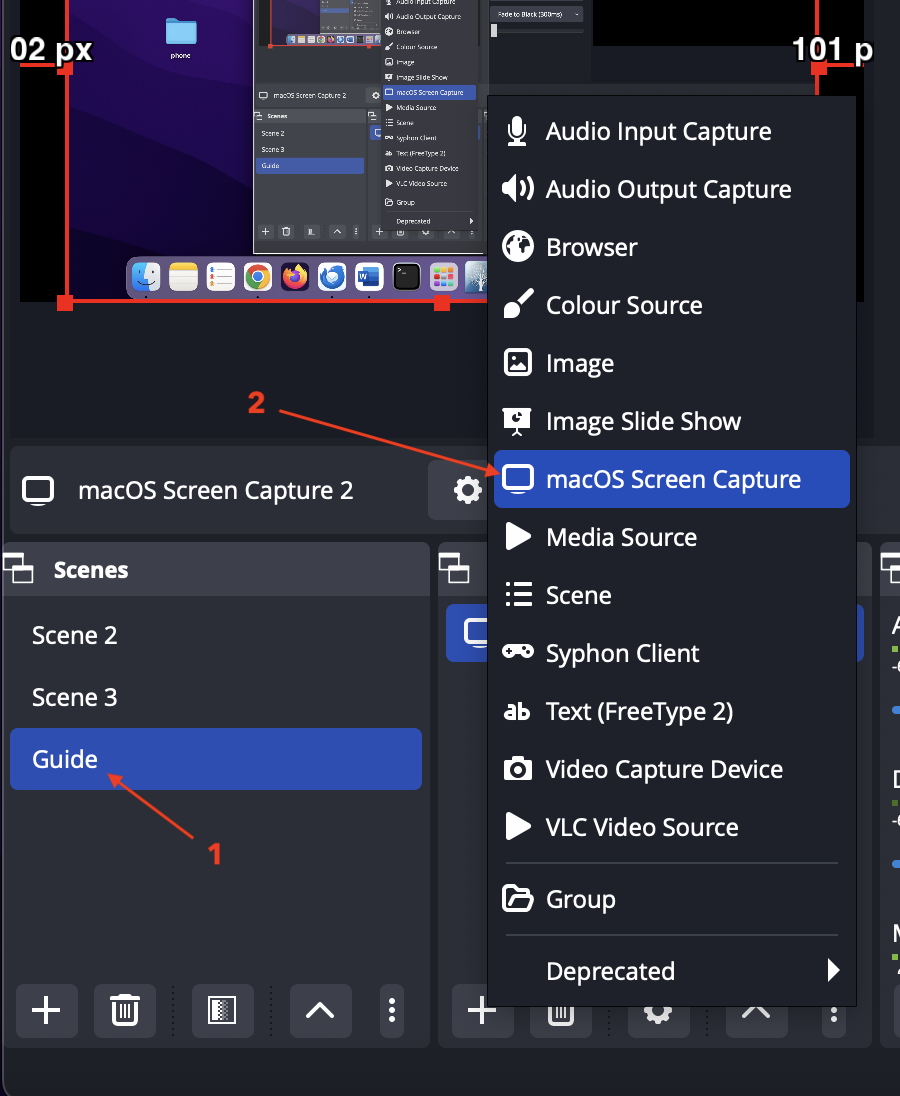
Ensure your created scene is selected (for MAC).
Add Screen Capture (Platform Difference)
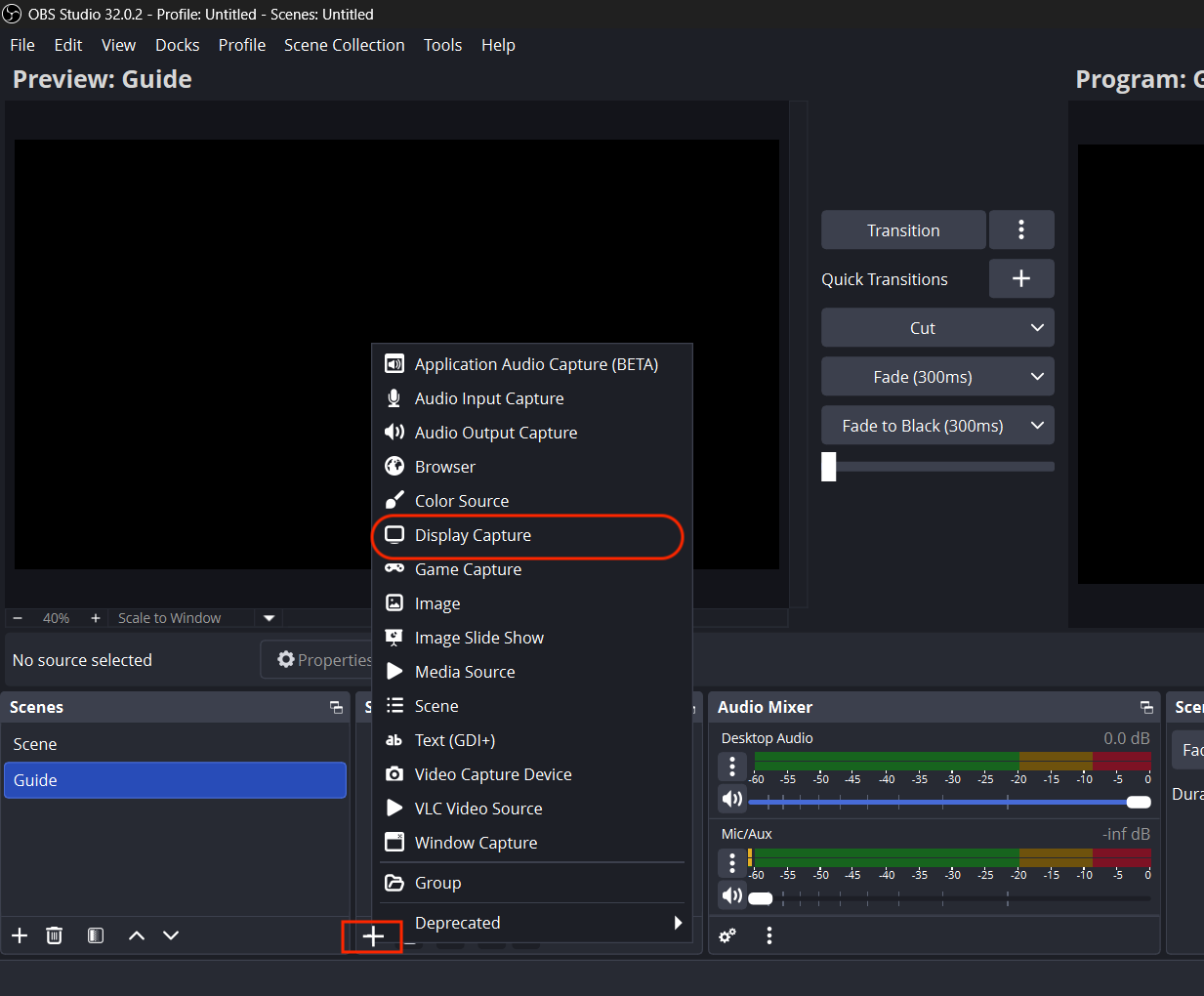
Click "+" in the Sources section.
🪟 On Windows:
Select → Display Capture
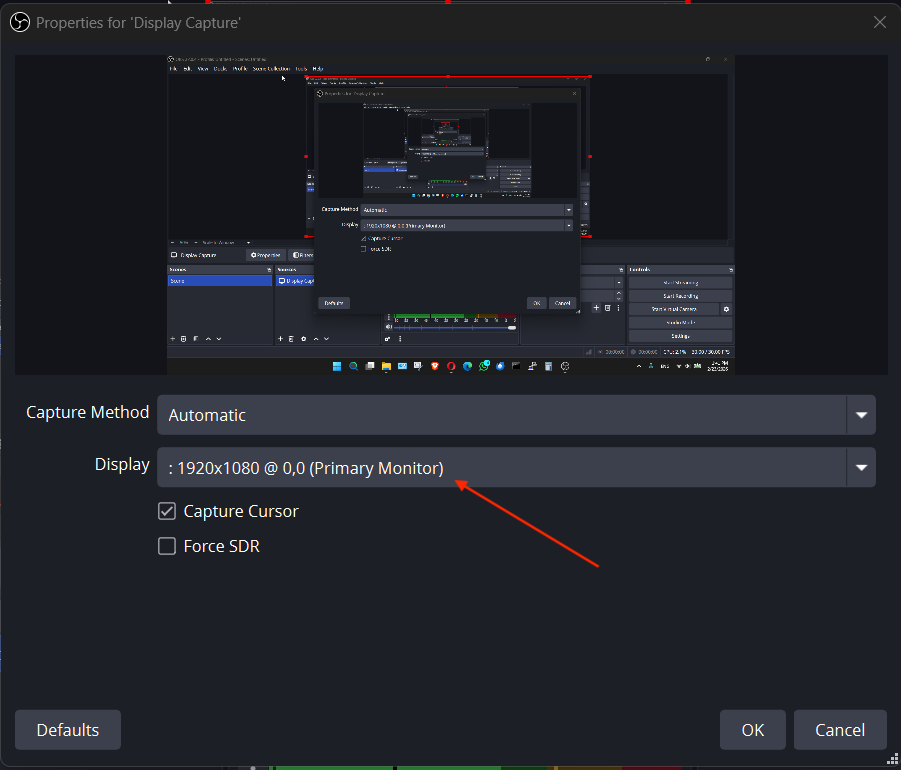
🍎 On macOS:
Select → macOS Screen Capture (Older versions may show as Display Capture)
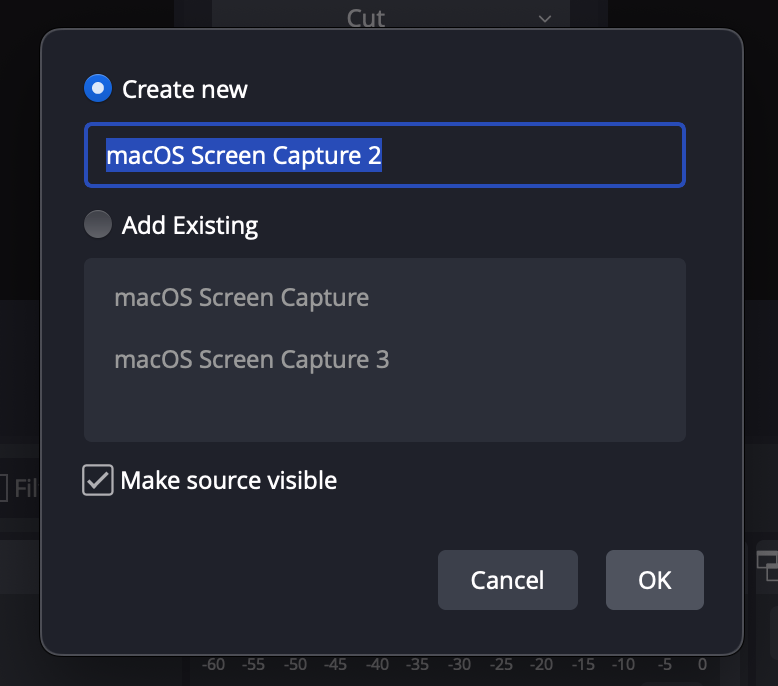
- Select Create New and Click "OK" to proceed.
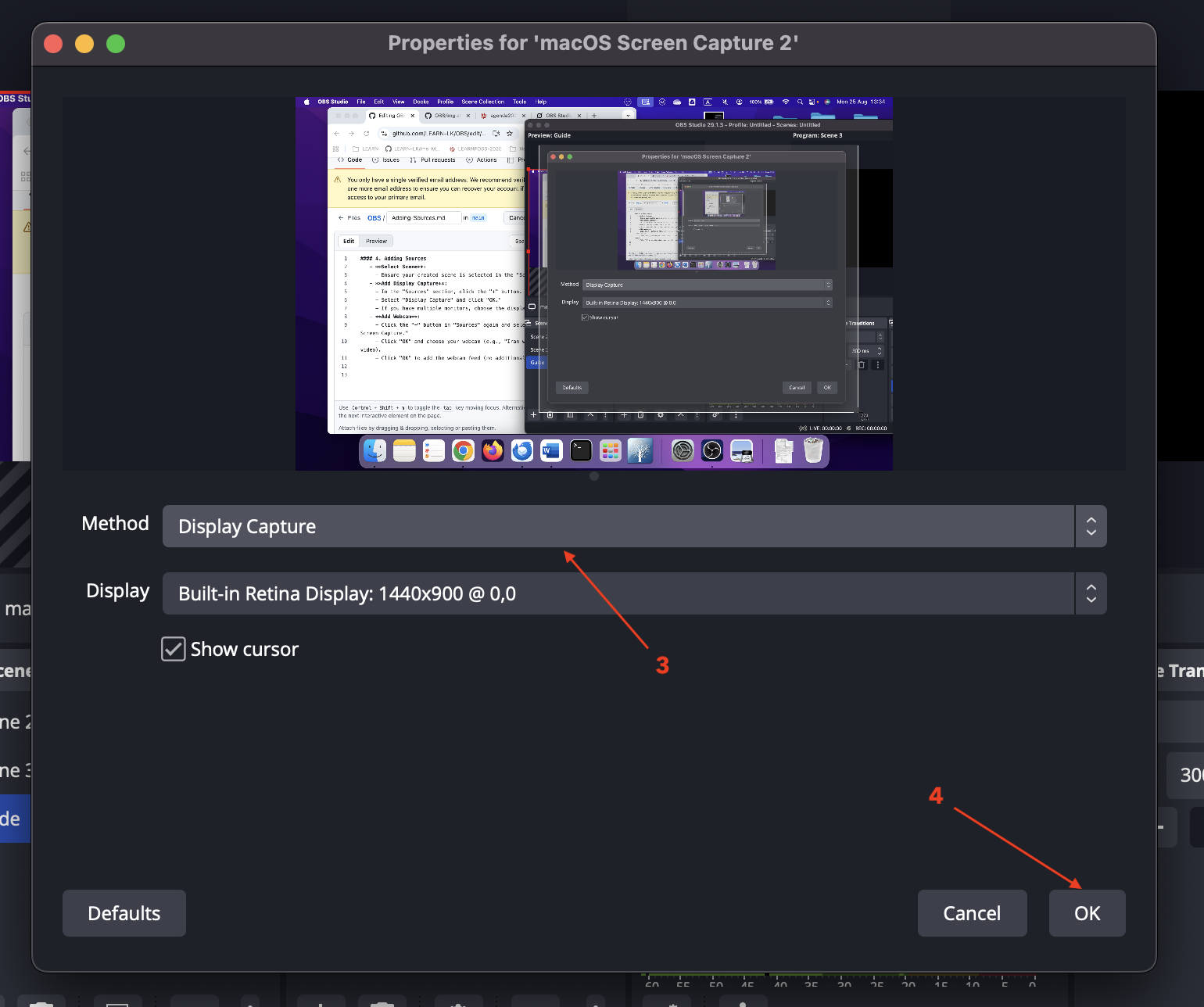
- In the next window select the capture method:
- Choose Display Capture [3] from the "Method" dropdown to capture the entire screen.
- Leave "Window Capture" or "Application Capture" unselected unless you want to focus on a specific window or application.
- Check "Show cursor" if you want the mouse cursor to be visible in the recording (optional).
- Click "OK" [4] to add the screen capture feed.
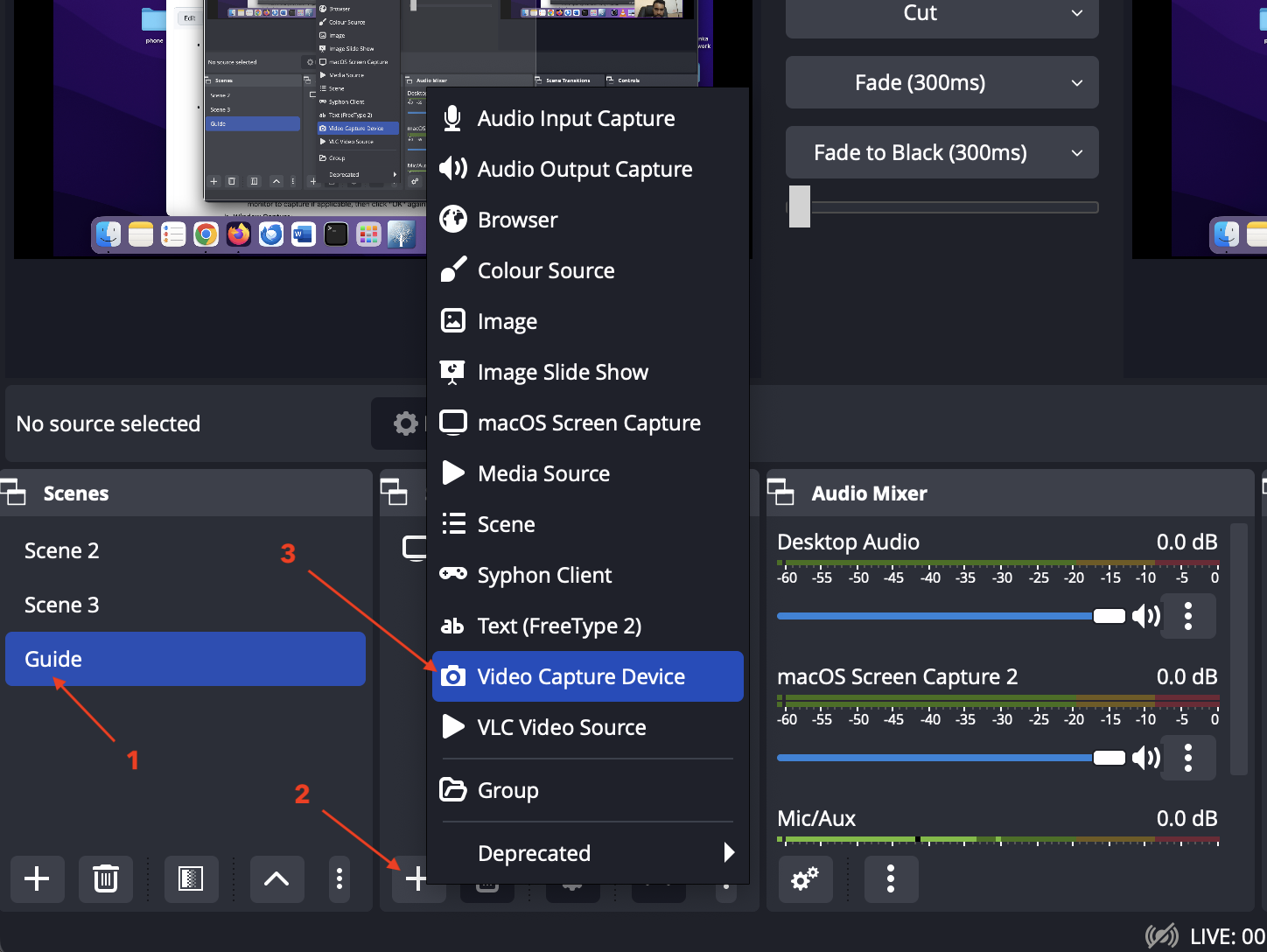
- Add Webcam:
- Click the "+" [2] button in "Sources" again.
- Select "Video Capture Device" [3] from the dropdown menu and click "OK."
- A window will appear with the following options:
- Create new [4]: Select this option and name the source (e.g., "Video Capture Device 2").
- Add Existing: Use this if you’ve already created a video capture source and want to reuse it (not applicable here since you’re adding a new one).
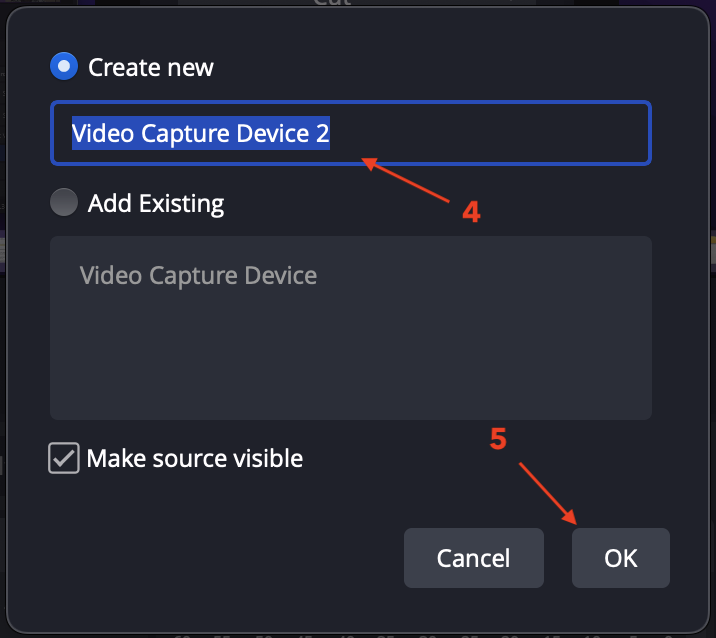
- Ensure "Make source visible" is checked to display the webcam feed immediately.
-
Click "OK" [5] to proceed.
-
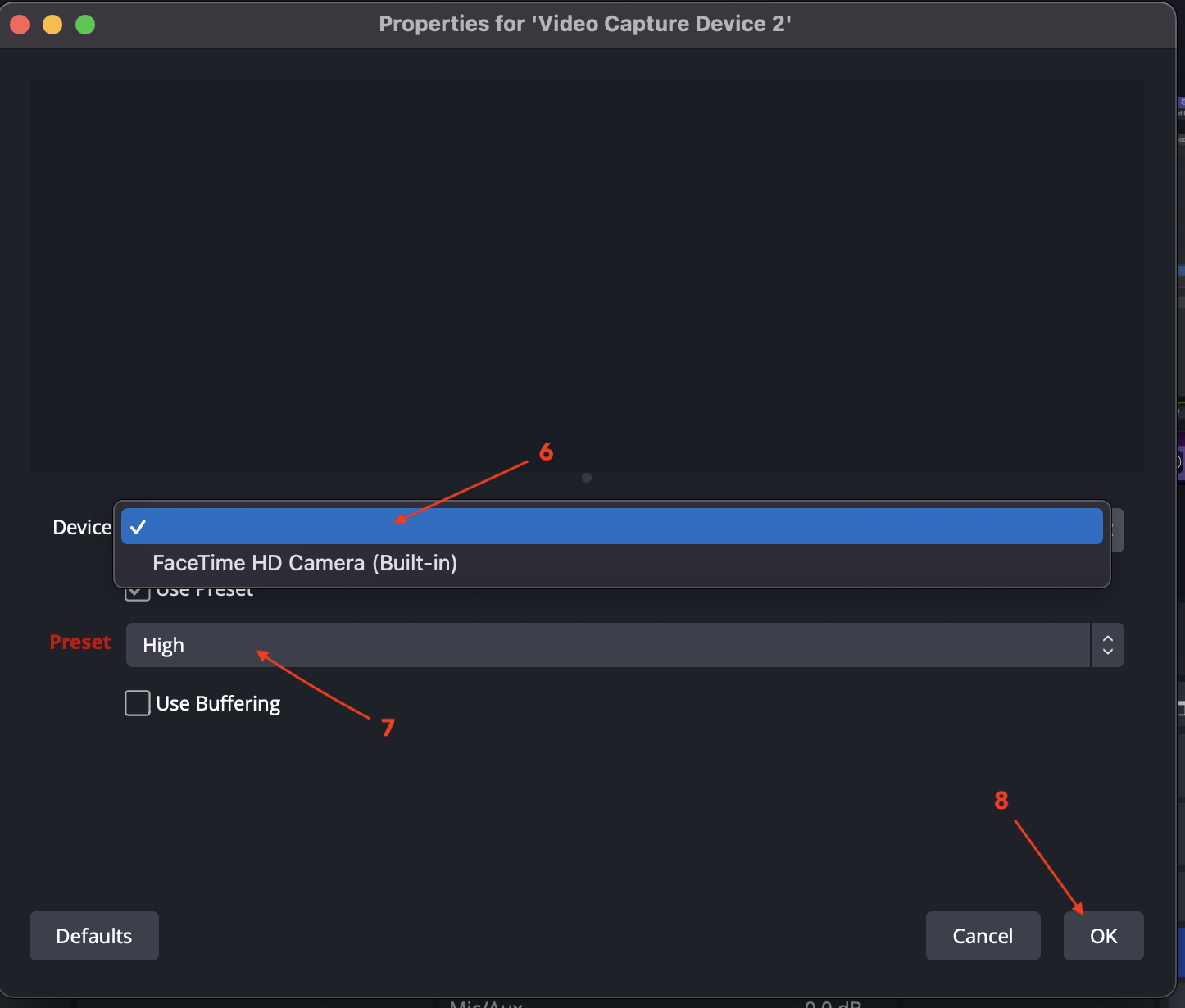
In the next window , select your webcam from the "Device" [6] dropdown (e.g., "FaceTime HD Camera (Built-in)" or your connected webcam).
- Set the "Preset" to "High" [7] for better quality (optional adjustment).
- Leave "Use Buffering" unchecked unless you experience lag (not recommended unless needed).
- Click "OK" [8] to add the webcam feed.
5. Customization
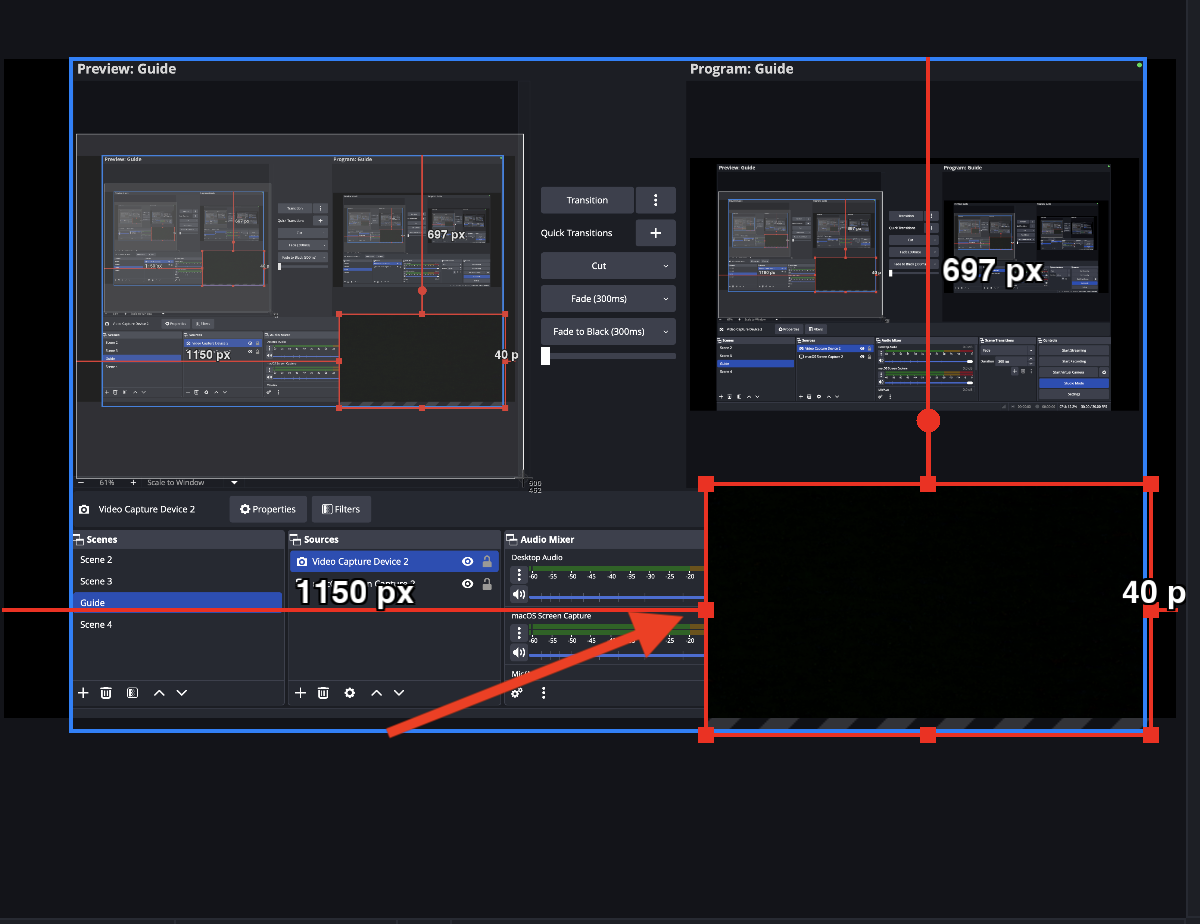
- Adjust Webcam Position and Size:
- In the OBS preview window, use the red dots around the webcam feed to resize or drag it to your preferred position (e.g., bottom-right corner, as adjusted to 777 px width and 45 px height in the example).
- Adjust Microphone Volume:
- Use the audio mixer in OBS to fine-tune your microphone volume as needed.
6. Recording
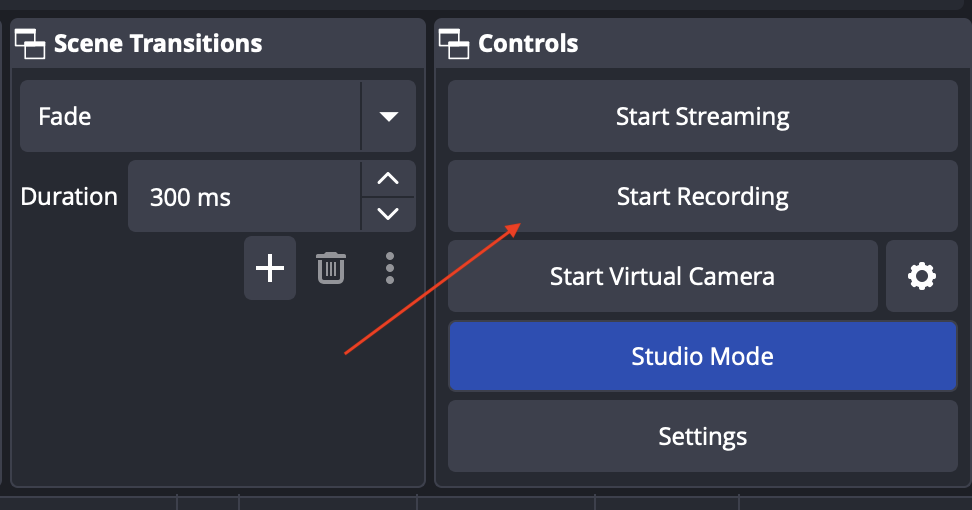
- Start Recording:
- Click "Start Recording" in the bottom-right corner.
- Minimize OBS Studio to record your screen and webcam simultaneously.
- Stop Recording:
- When finished, return to OBS Studio and click "Stop Recording."
- Locate the recorded file in the file path specified in the output settings.