Video Guide - Moodle Virtual Class Room (Webinar)
Moodle Virtual Classroom (Webinar)
The LEARN Virtual Classroom (vCR) is an online web conferencing platform powered by BigBlueButton. It enables teachers to conduct live online classes, webinars, meetings, and discussions directly through a web browser.
Teachers from LEARN member institutions can use the service free of charge with zero-rated (data-free) access where applicable. Users can create virtual classrooms, invite participants using a meeting link, and integrate the classroom into Moodle.
Note
The VCR service is available only to EduID Staff members or users with Institutional Credentials.
If you do not have an EduID account, visit https://eduid.lk/.
01 - Log in to LEARN vCR
You can log in using either:
- EduID credentials
- Institutional credentials
Steps
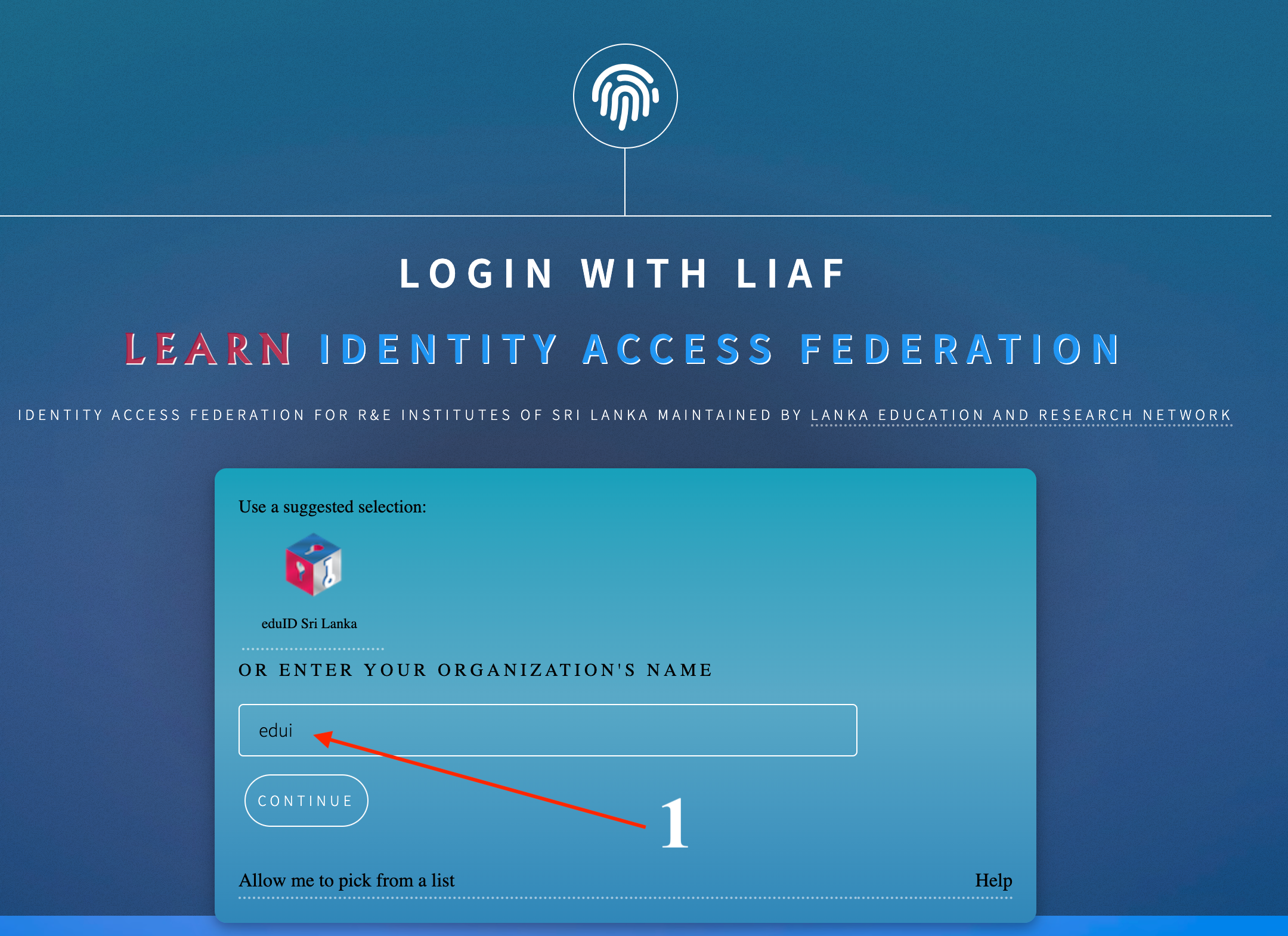
- Open https://vcr.learn.ac.lk/
-
From the identity provider list, select:
-
equID Sri Lanka (EduID users), or
- Your institution (Institutional users).
- Click Continue.
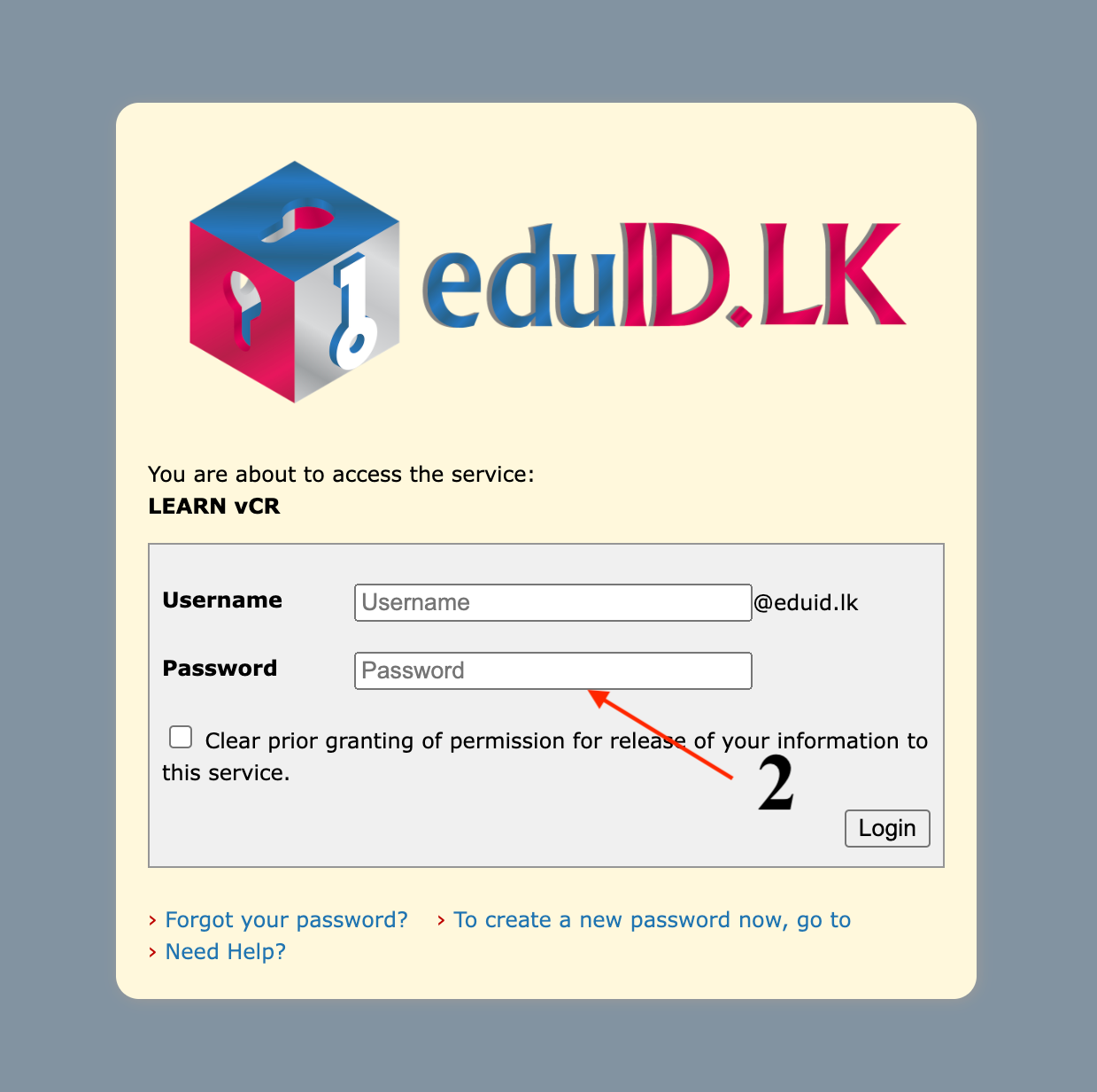
- Enter your username and password.
- Click Sign In.
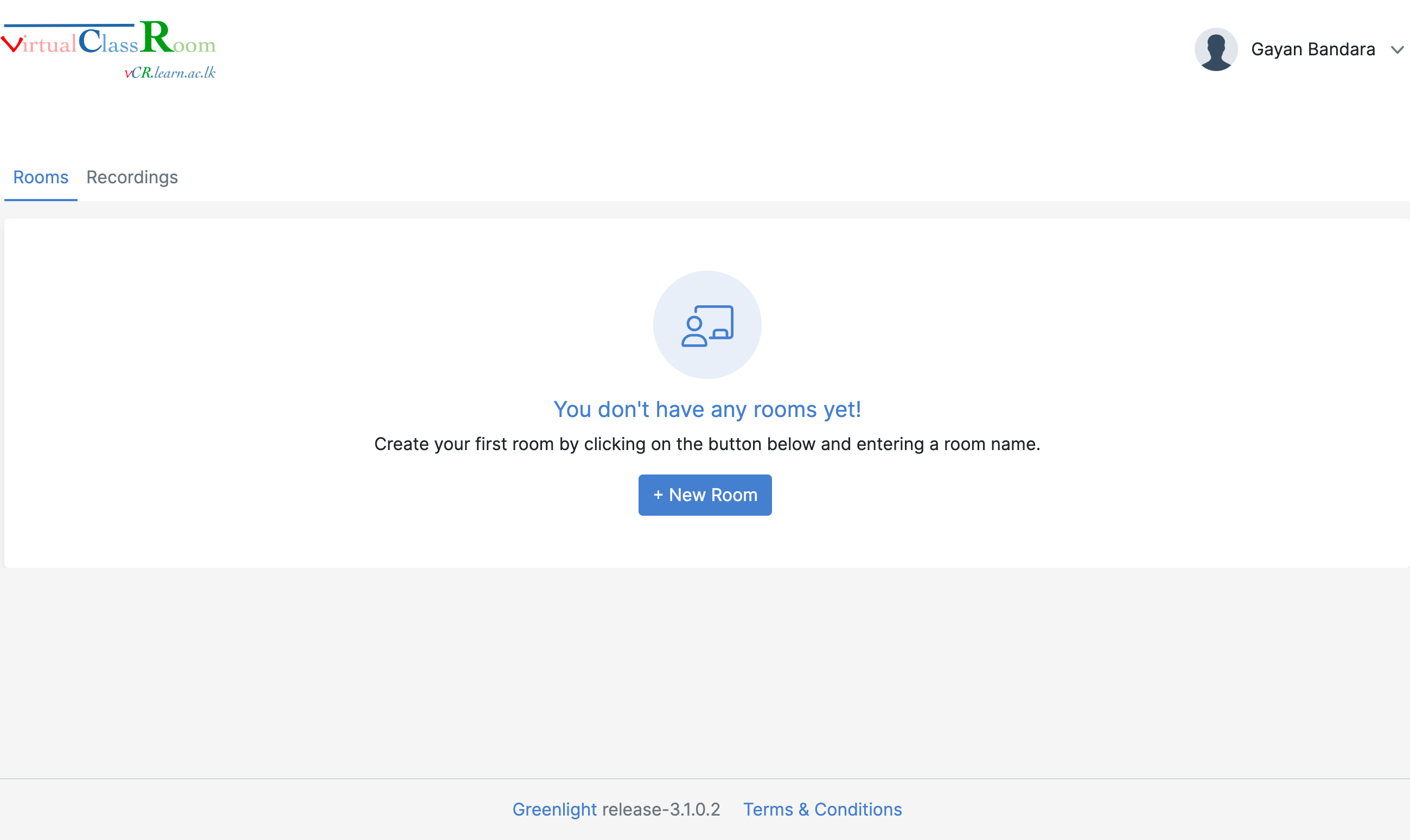
- The LEARN vCR Dashboard will open.
02 - Create a Virtual Classroom
To create a virtual classroom, follow the official LEARN vCR User Guide.
User Guide: https://vcr.learn.ac.lk/userguide/
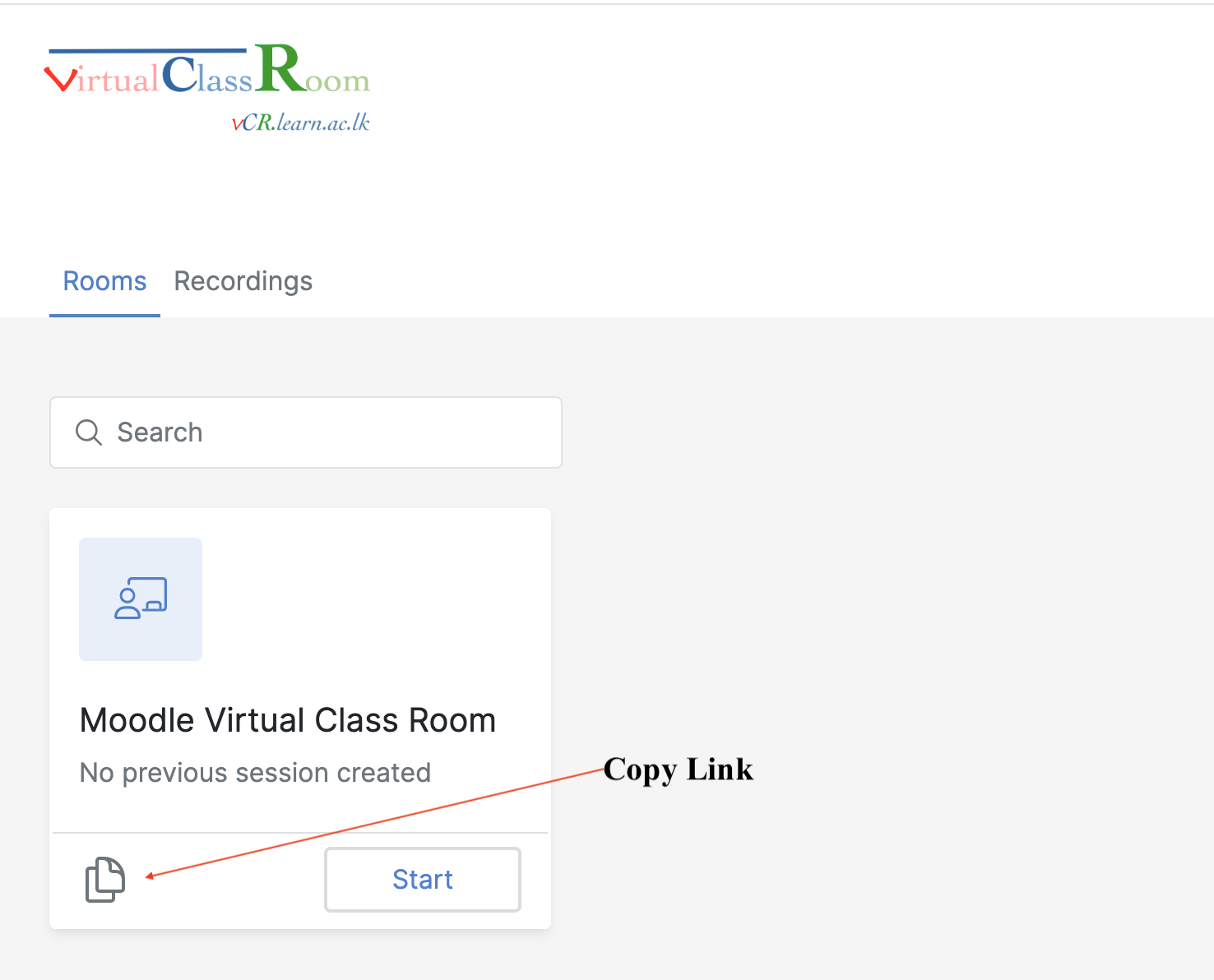
After creating the room, copy the Meeting Link.
03 - Add the Virtual Classroom to a Moodle Course
Steps
- Log in to Moodle as a Teacher or Administrator.
- Open the required course.
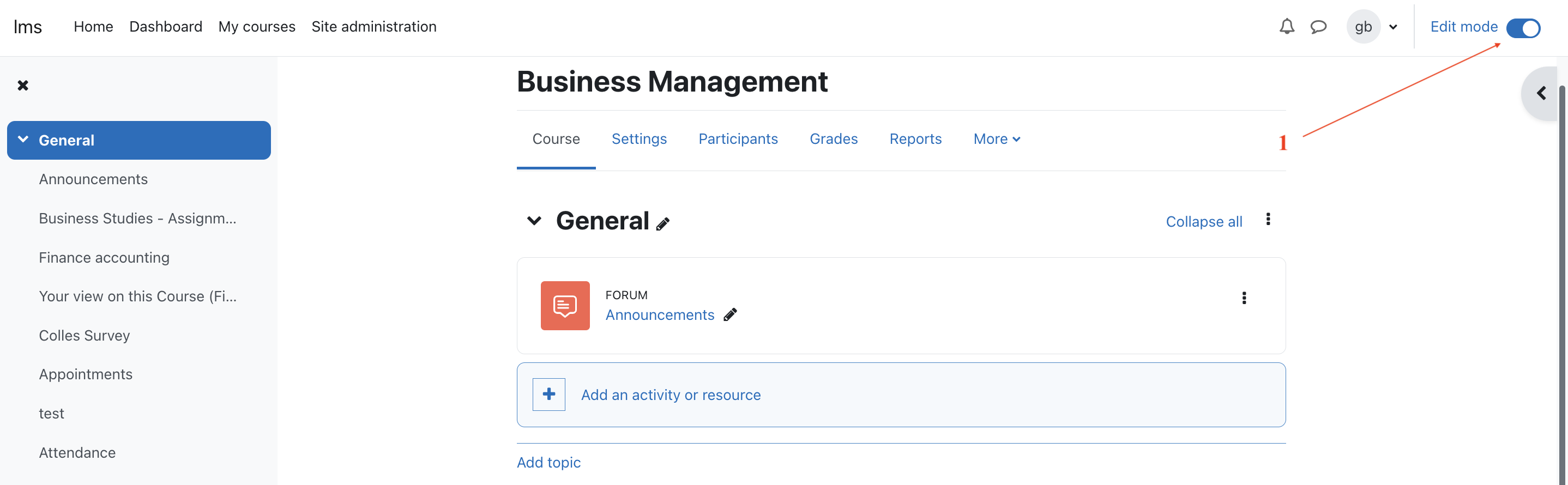
- Turn editing on [1].
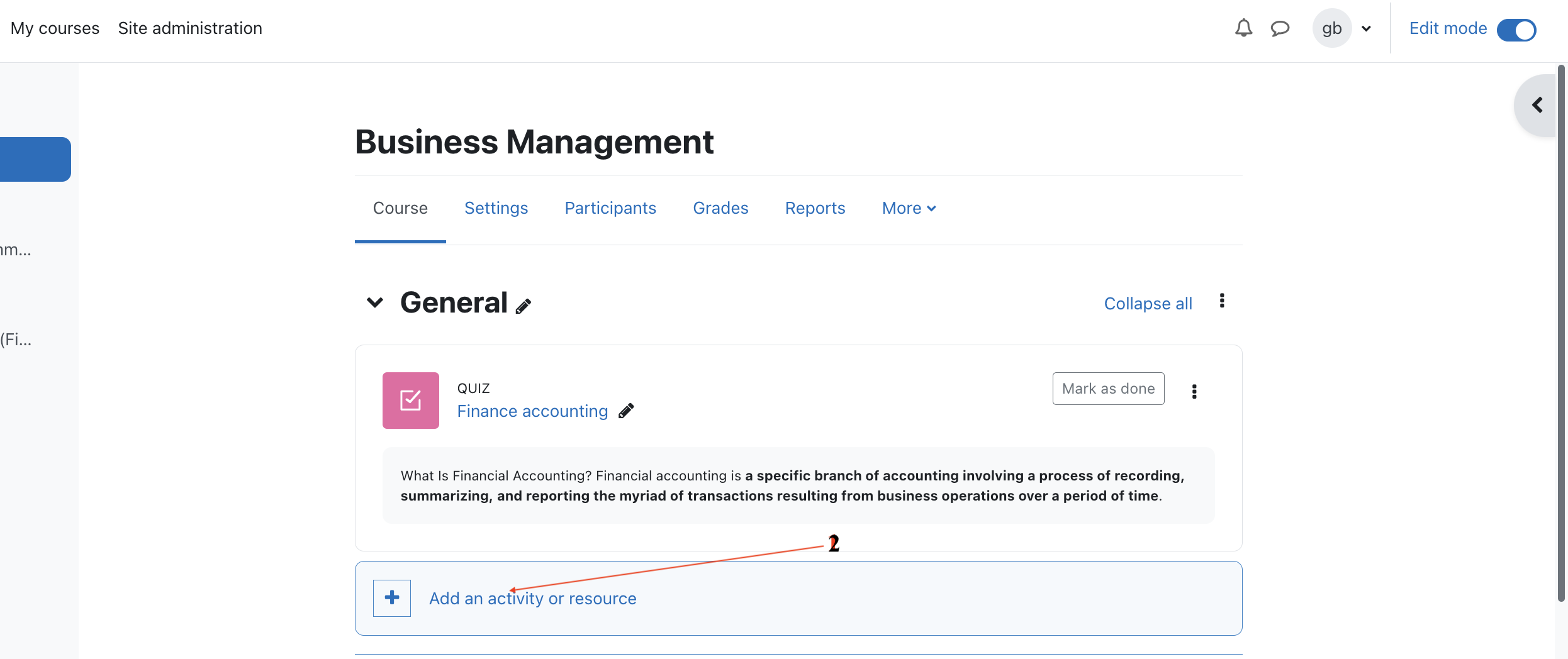
- Click Add an activity or resource [2].
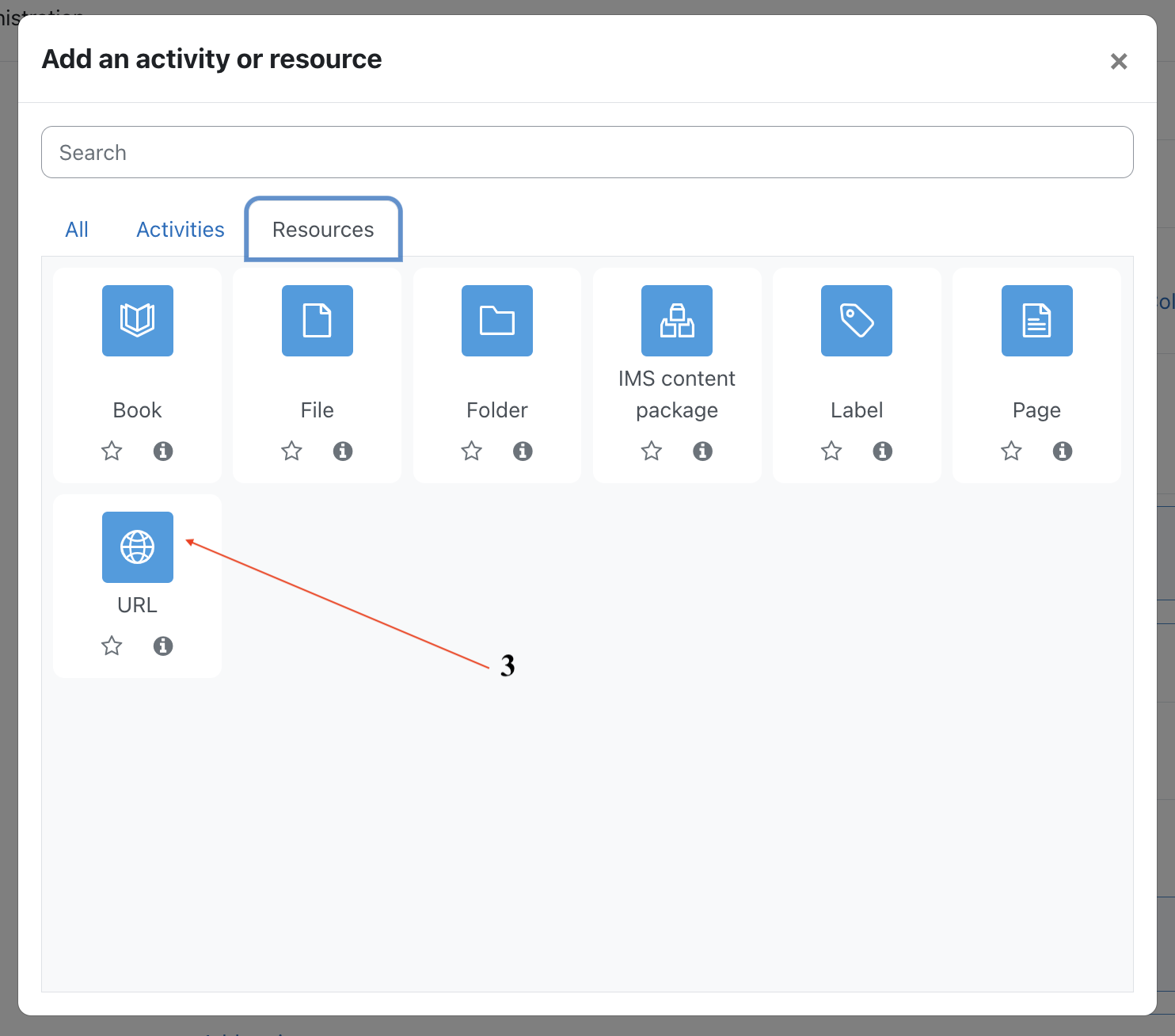
- Select URL [3].
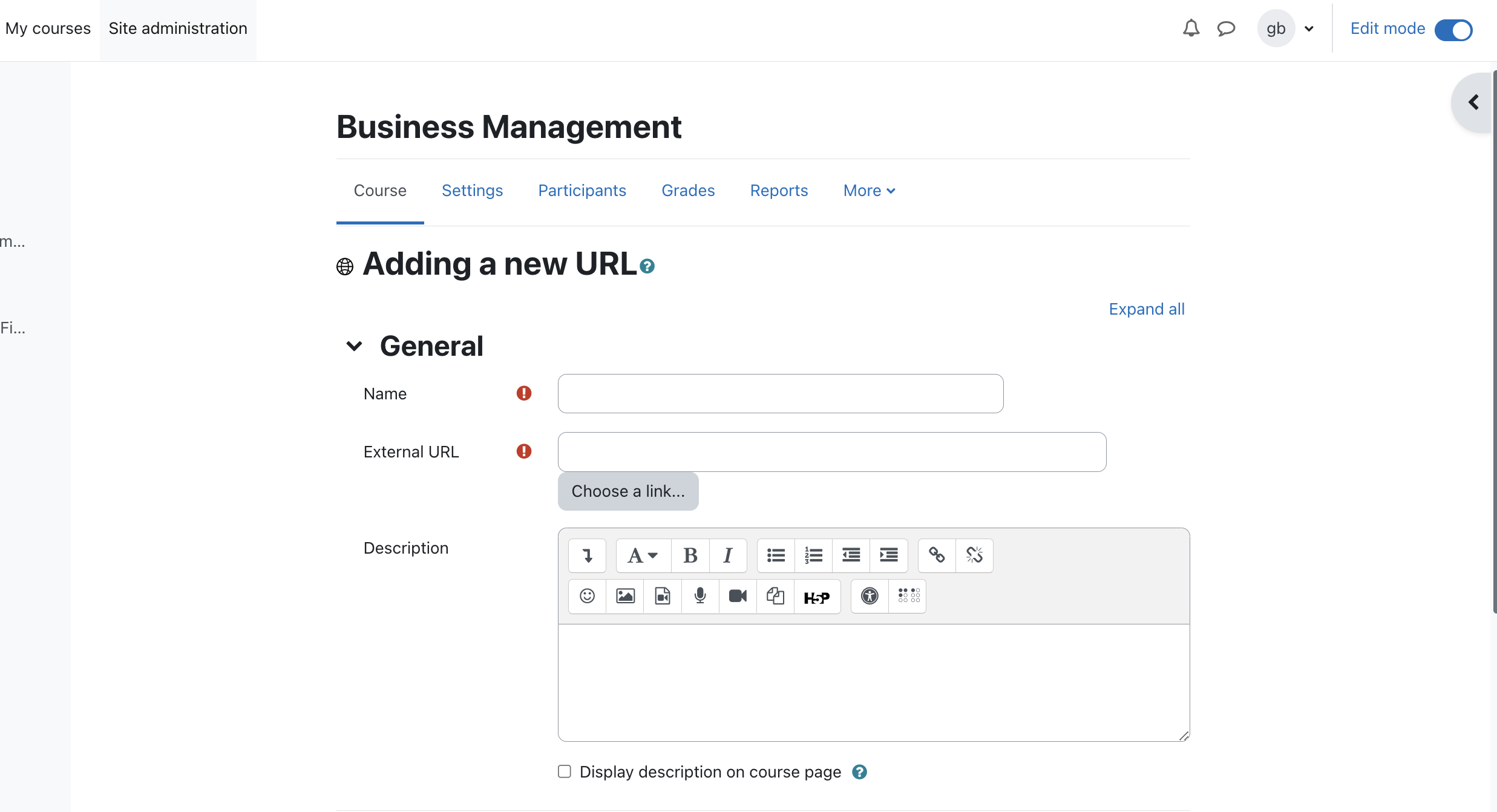
- Click Add.
-
Enter the activity details:
-
Name – Enter a meaningful activity name.
- External URL – Paste the copied VCR meeting link.
- Description (Optional) – Add meeting details for students.
- Click Save and return to course.
The Virtual Classroom is now available on the course page.
04 - Student Access
Students can join the virtual classroom directly from the Moodle course.
Steps
- Open the Moodle course.
- Click the Virtual Classroom activity.
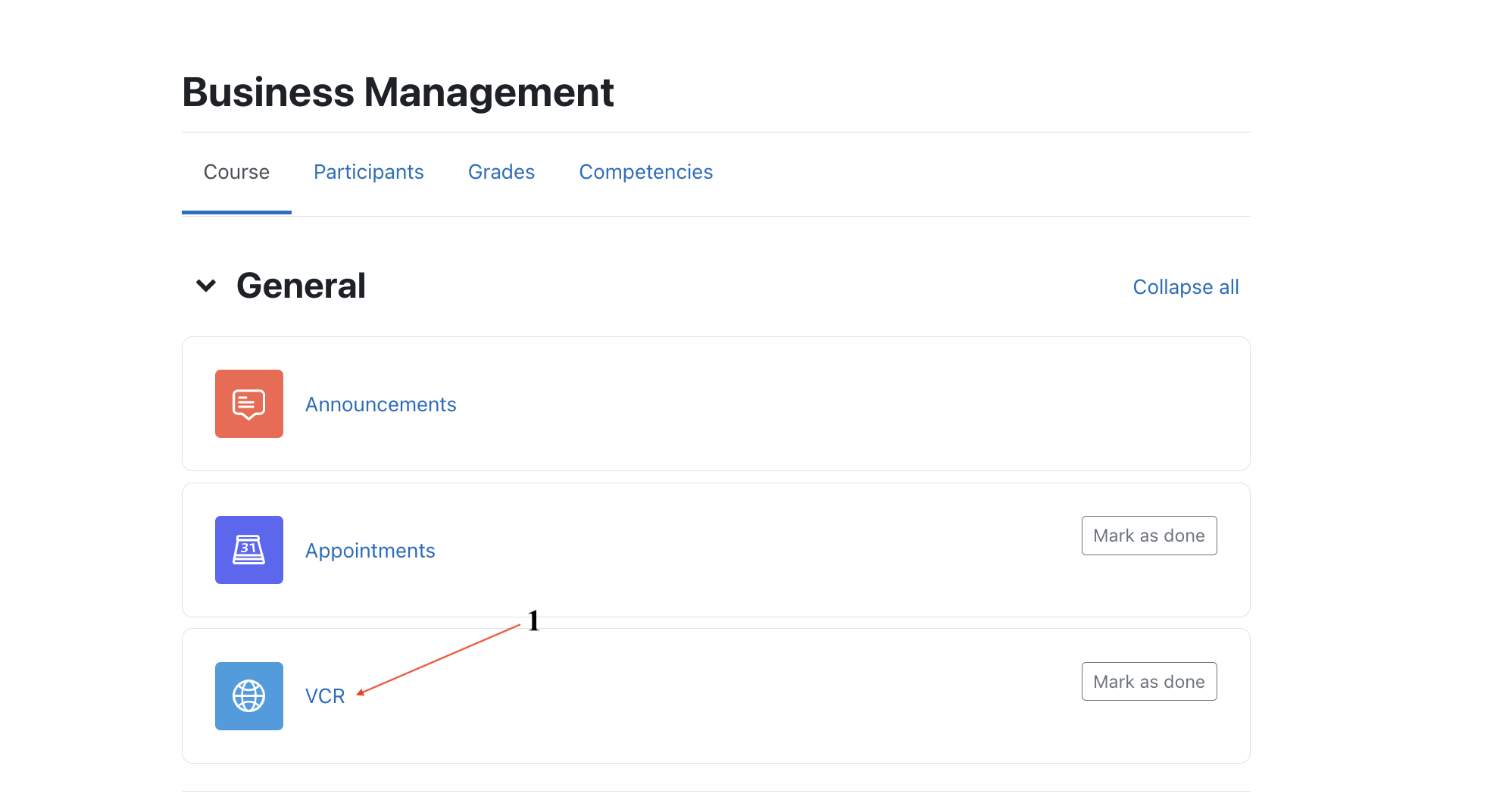
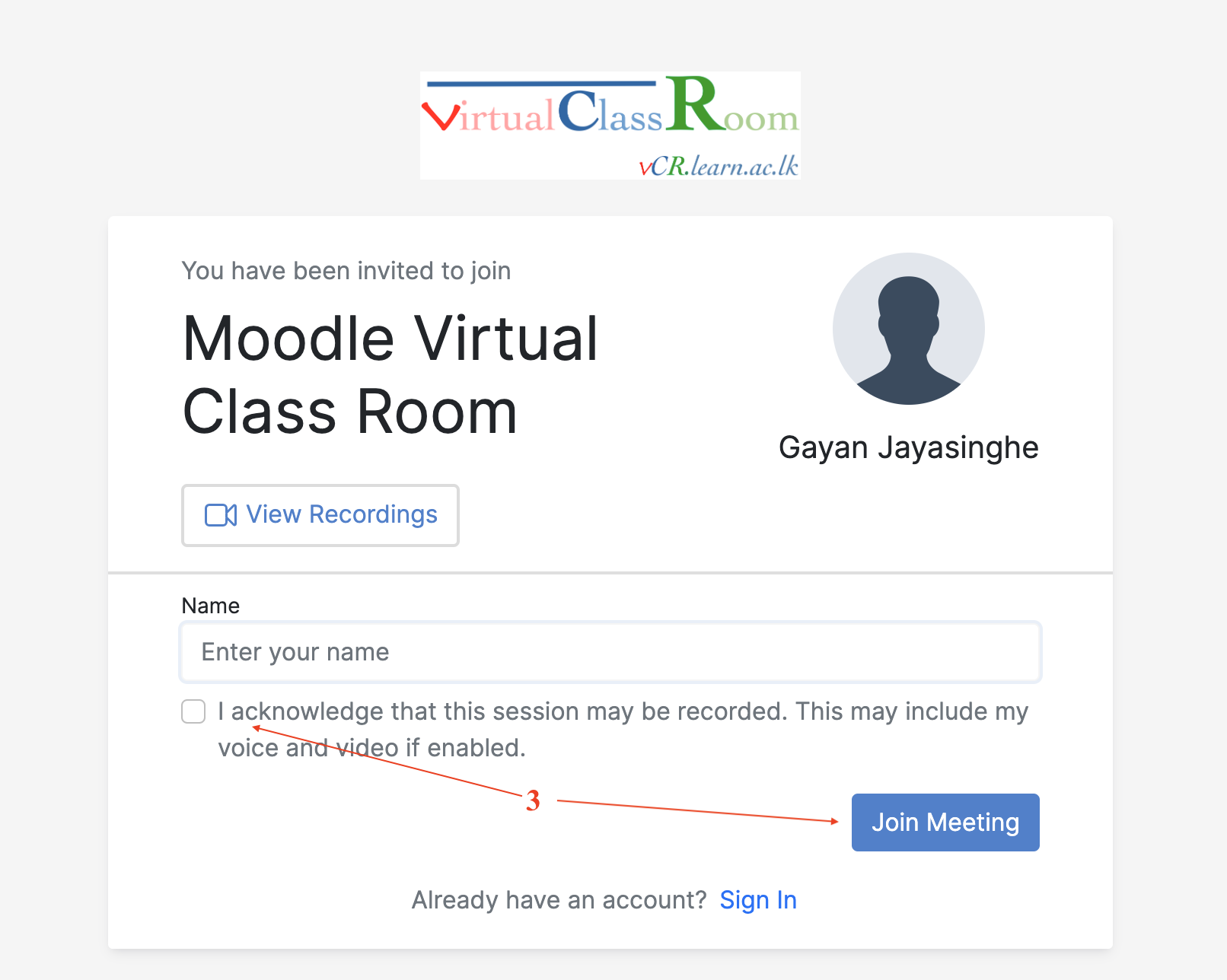
- Click Join Meeting.
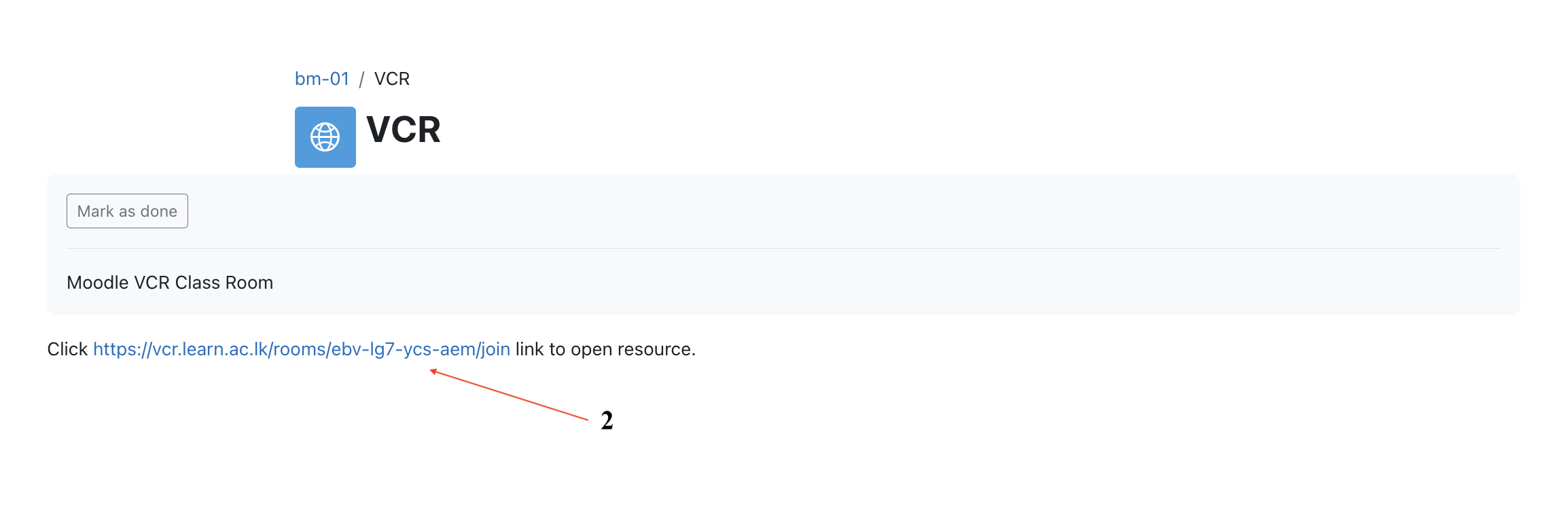
- The meeting will open in LEARN vCR.
05 - Add a Recurring Virtual Classroom Session to the Moodle Calendar
If your Virtual Classroom session is held regularly (for example, every week), you can add it to the Moodle Calendar.
Steps
- Copy the VCR meeting link.
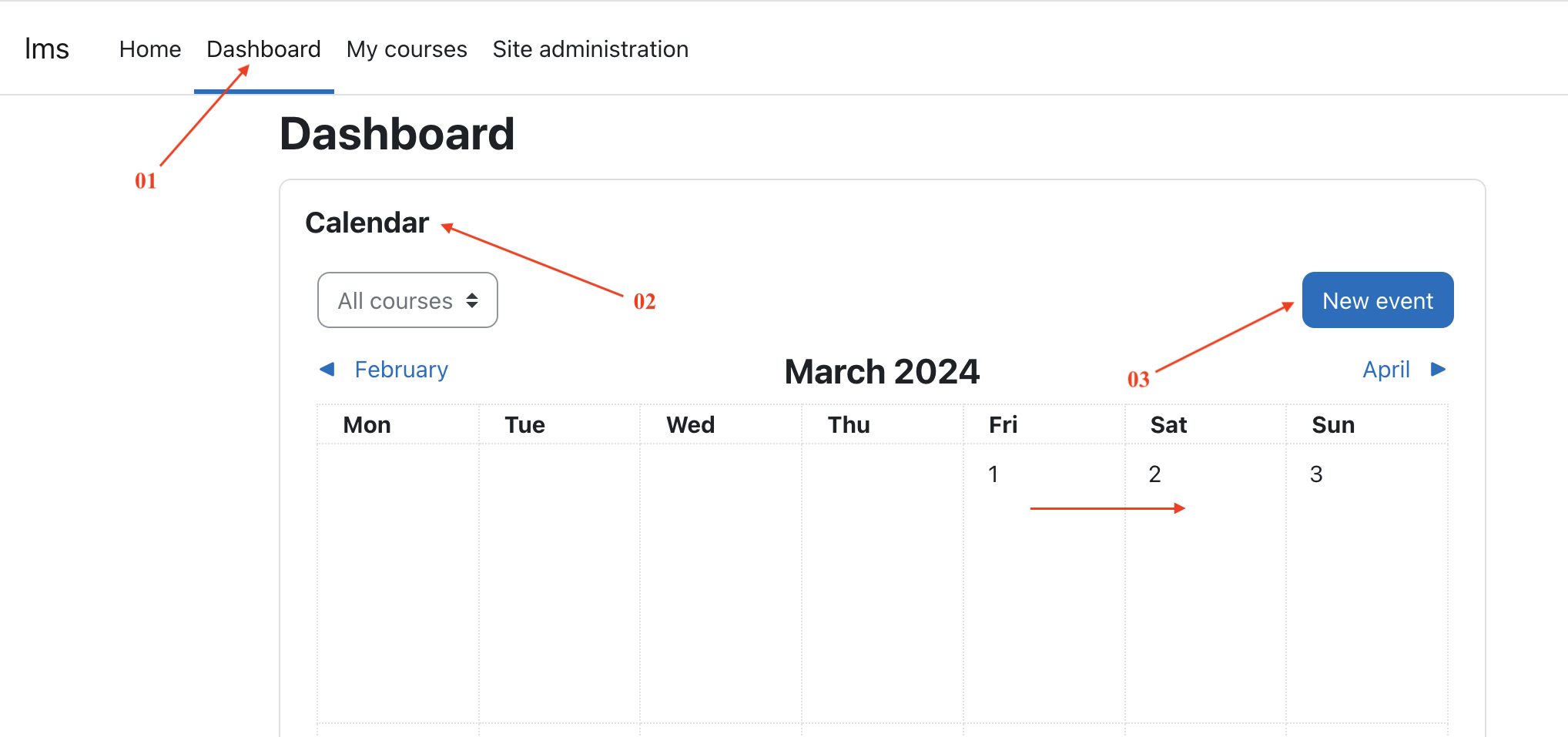
- Open the Moodle Dashboard [1].
- Go to Calendar [2].
- Click the required date or select New [3].
-
Enter the event details:
-
Event title [4]
- Date [5]
- Event type [6]
- Description [7]
- Location (Optional)
- Duration
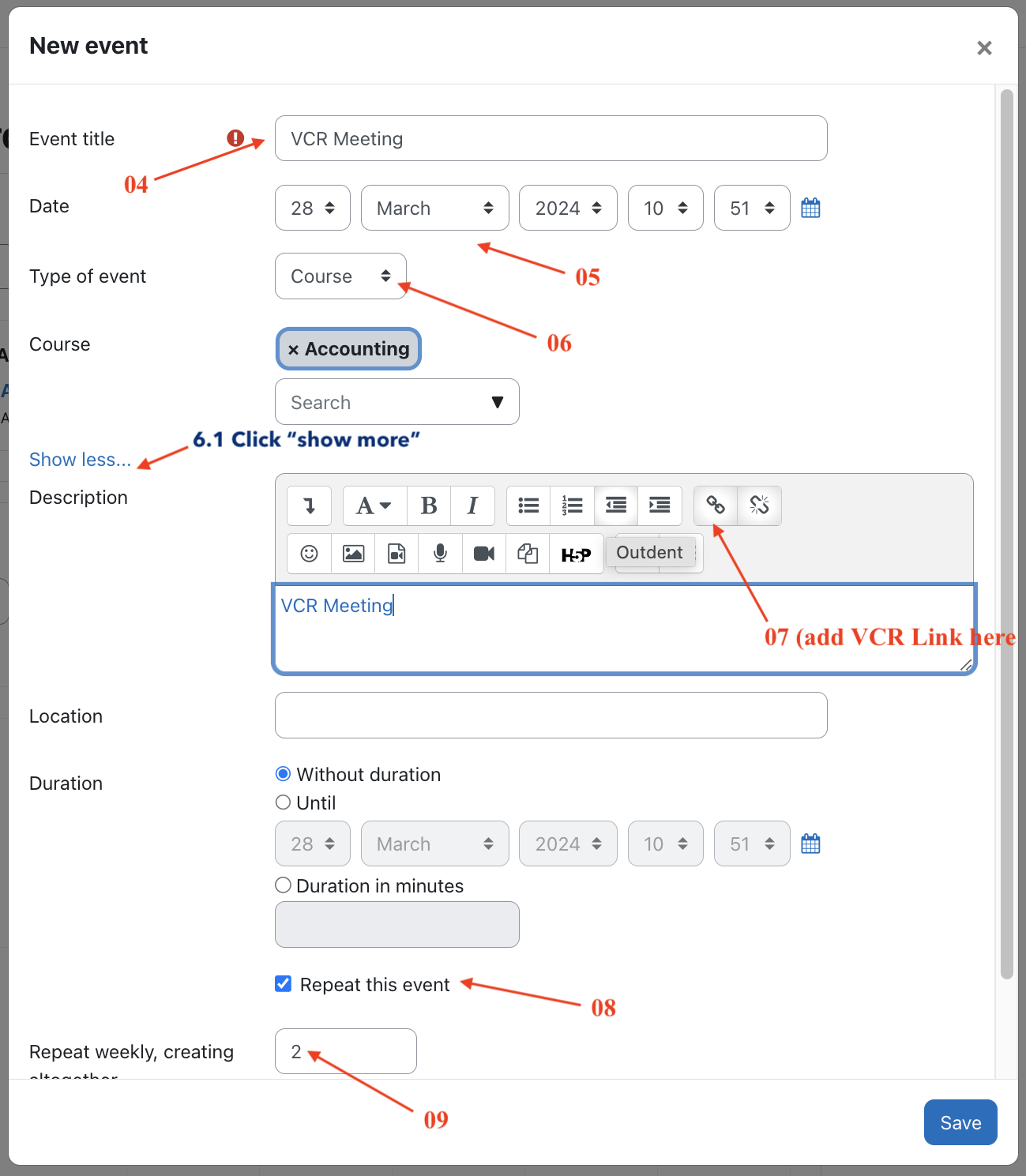
- Enable Repeat this event.
- Select Repeat weekly and specify the number of weeks.
- Click Save.